

Introduction
All-in-one (AIO) computers combine the monitor and internal components into a single, compact unit—offering a streamlined alternative to traditional desktop setups. With fewer cables, less clutter, and a modern aesthetic, they’re designed for users who want simplicity without sacrificing performance.
In 2025, AIO computers are more popular than ever. Thanks to powerful new processors, high-resolution displays, and improved cooling systems, they offer a balance of form and function that appeals to a wide range of users. Their space-saving design, minimalist look, and plug-and-play usability make them ideal for modern workspaces and households.
Whether you’re setting up a small home office, designing creative content, managing schoolwork, or simply prefer an all-in-one solution over bulky towers, AIO computers offer a smart and stylish alternative worth considering.
What Is an All-in-One Computer?
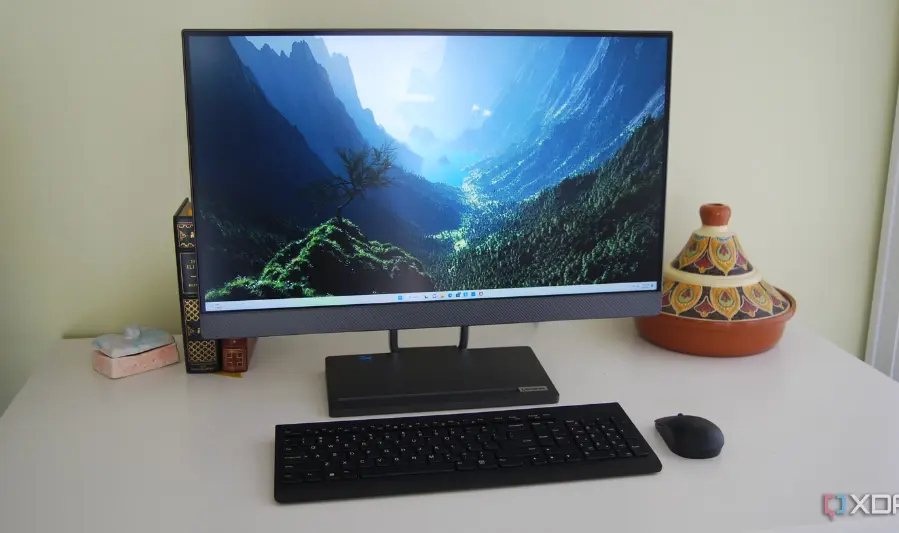
An All-in-One (AIO) computer is a desktop computer that integrates all its components—such as the processor, memory, storage, and speakers—into the monitor itself. Unlike traditional desktops, which separate the tower from the display, an AIO combines everything into one sleek, compact unit.
How It Differs from Desktops and Laptops
| Feature | AIO Computer | Traditional Desktop | Laptop |
|---|---|---|---|
| Form Factor | Single-unit design | Separate tower and monitor | Portable, folding design |
| Portability | Not easily portable | Not portable | Highly portable |
| Upgradability | Limited | High | Very limited |
| Space Efficiency | High | Low to medium | High |
Components Typically Included in an AIO
- Display (built-in monitor, often Full HD or 4K)
- Processor (Intel, AMD, or Apple Silicon)
- RAM (usually 8GB–32GB, depending on model)
- Storage (SSD or hybrid drive)
- Graphics Card (integrated or discrete, depending on the model)
- Built-in Speakers, Webcam, and Microphone
- Wi-Fi and Bluetooth Connectivity
- Pre-installed Operating System (e.g. Windows, macOS)
Pros of AIO Computers
- Space-Saving Design: Ideal for small desks and clutter-free setups.
- Sleek and Stylish: Often more visually appealing than tower PCs.
- Fewer Cables: Integrated components reduce wiring and setup time.
- Good Performance for General Use: Suitable for office tasks, web browsing, and light creative work.
Cons of AIO Computers
- Limited Upgradability: Most components (especially CPU and GPU) are not user-upgradable.
- Less Powerful Than High-End Desktops: May struggle with intensive tasks like 3D rendering or high-end gaming.
- Repair Costs Can Be Higher: Integrated design makes repairs more complex and sometimes more expensive.
- Portability Is Still Limited: Not as easy to move around as a laptop.
Benefits of All-in-One Computers
1. Space-Saving and Cable-Free Design
AIO computers eliminate the need for a bulky tower, offering a compact footprint that fits easily on small desks or workstations. With fewer cables (often just power and keyboard/mouse), your workspace stays clean and organized.
2. Easy Setup and Minimal Maintenance
AIOs are virtually plug-and-play. Since the components are already integrated, there’s no complex assembly—just connect power, and you’re ready to go. Fewer external parts also mean less maintenance and troubleshooting.
3. Great for Office Work, Video Calls, and Creative Tasks
All-in-one systems are ideal for:
- Office productivity tools (Word, Excel, email)
- Web browsing and remote work
- Video conferencing with built-in webcams and microphones
- Light to moderate creative work like photo editing, design, or content creation
4. Touchscreen Options Available
Many AIOs offer touchscreen displays, making navigation more intuitive—especially useful for presentations, interactive apps, or users transitioning from tablets.
Key Features to Consider Before Buying

Choosing the right all-in-one (AIO) computer depends on how you plan to use it—whether for office work, creative tasks, or general productivity. Here are the most important features to evaluate before making a purchase:
1. Processor (CPU)
- Look for Intel Core i5 or i7, or AMD Ryzen 5 or 7.
- For basic tasks (email, browsing, office work), an i5 or Ryzen 5 is sufficient.
- For more demanding workloads like photo editing, video conferencing, or multitasking, an i7 or Ryzen 7 is recommended.
2. RAM (Memory)
- 8GB RAM is the minimum for general use.
- 16GB or more is ideal for multitasking, creative software, or business apps running simultaneously.
- Ensure the RAM is upgradeable if you plan to future-proof the system.
3. Storage
- SSD (Solid State Drive) ensures fast boot times and quick file access.
- HDD (Hard Disk Drive) offers more storage for files but is slower.
- A hybrid setup (SSD + HDD) provides the best of both: speed and capacity.
4. Display
- Screen sizes typically range from 21 to 27 inches.
- Full HD (1920×1080) is good for everyday use.
- 4K displays are better for content creators and professionals needing high resolution and color accuracy.
- If you work with visuals, check for IPS panels and wide color gamut support.
5. Graphics (GPU)
- Integrated graphics are fine for basic office work, streaming, and light editing.
- Dedicated GPUs (from NVIDIA or AMD) are better suited for:
- Graphic design
- Video editing
- 3D modeling
- Light gaming
6. Ports and Connectivity
Ensure the AIO has the right ports for your needs:
- USB-C and USB-A for peripherals
- HDMI (out or in, depending on your setup)
- Ethernet port for stable wired internet
- Wi-Fi 6 for fast wireless connectivity
- Bluetooth 5.0 or newer for wireless accessories
7. Webcam and Speakers
- A high-quality 1080p webcam is essential for virtual meetings.
- Look for dual microphones with noise reduction for clearer calls.
- Built-in stereo speakers should be sufficient for video conferencing and casual media use, but external speakers may be better for professional audio needs.
you may also like to read these posts:
Top Budget Laptops for Students 2025 – Best Picks Under Rs. 58,000
Best Gaming PCs Under $1000 in 2025 for Smooth
Best Business Computers in 2025: Performance & Reliability
All-in-One Computers Guide 2025: Best Picks & Buying Tips
1. Apple iMac 24″ (M3)
- Brief Specs: 24‑inch 4.5K Retina display, Apple M3 chip (8-core CPU, 8- or 10-core GPU depending on model), up to 16 GB unified memory, SSD storage options, Thunderbolt 4/USB‑C, and Wi‑Fi 6E.
- Ideal for: Creatives and macOS users who value stunning display quality and seamless Apple ecosystem integration.
- Pros:
- Thin and sleek design with excellent performance on the M3 chip.
- Bright, colorful screen; reliable performance; strong software support.
- Cons:
- No design updates from prior generation; base model includes only a 256 GB SSD.
- RAM is non-upgradable and is unified under the SoC, restricting future flexibility.
2. HP Pavilion 27 All-in-One
- Brief Specs: Affordable 27‑inch AIO with sleek design, suitable for everyday home or office use (specific 2025 model specs not found).
- Ideal for: Home offices and everyday users seeking value and style.
- Pros:
- Attractive styling at a competitive price.
- Space-saving and plug-and-play simplicity.
- Cons:
- Specification details are limited; likely equipped with entry-level components.
- Probably lacks advanced features like high-res touchscreens or discrete graphics.
3. Dell Inspiron 24 5000 AIO
- Brief Specs: Mid-range Windows AIO (2025 specs not available).
- Ideal for: Students and professionals needing reliable AIO performance on a budget.
- Pros:
- Trusted Dell build quality.
- Suitable for productivity tasks and general use.
- Cons:
- Likely underpowered for intensive creative workflows or demanding applications.
- Details on display quality and upgrade options are unclear.
4. Lenovo Yoga AIO 9i (Gen 10)
- Brief Specs: 32‑inch 4K IPS display with Copilot+ support, Intel Core Ultra 7 258V, 32 GB RAM, NVIDIA RTX 4050 GPU, wireless charging base, Wi‑Fi 6E, and high-quality audio.
- Ideal for: Creative professionals and media creators who want high-end visuals and AI-enhanced productivity.
- Pros:
- Premium display, powerful internals, integrated AI features, and smart extras like a wireless charge
- Impressive audio with Harman Kardon speakers and immersive visuals.
- Cons:
- Limited port placement and selection; webcam positioning may feel awkward.
- Display capped at 60Hz; bundled mouse and mouse/keyboard may lack refinement.
5. Acer Aspire C27
- Brief Specs (C27‑1700‑UA91 model tested): 27‑inch Full HD IPS display, Intel Core i5‑1235U, 16 GB RAM, 512 GB SSD, Intel Iris Xe graphics, lightweight design.
- Ideal for: Budget-conscious users needing everyday computing power and space-saving design.
- Pros:
- Affordable, sleek, lightweight, and performs well for general use and light editing
- Cons:
- Lower-quality webcam and speakers; no touch functionality and limited upgrade path.
Summary Table
| Model | Ideal For | Standout Feature | Notable Downside |
|---|---|---|---|
| Apple iMac 24″ (M3) | Creatives, macOS users | Stunning display and Apple ecosystem | Non-upgradable RAM, base storage limited |
| HP Pavilion 27 AIO | Home office, everyday users | Affordable and stylish | Limited specs and feature info |
| Dell Inspiron 24 5000 AIO | Students, budget professionals | Reliable Windows performance | Likely lacking high-end creative specs |
| Lenovo Yoga AIO 9i Gen 10 | Creative professionals, media users | Premium performance and AI features | Port placement and accessories could be better |
| Acer Aspire C27 | Budget users, light multitasking | Value for space-saving setup | Basic webcam/audio and limited flexibility |
All-in-One vs. Traditional Desktop: Which is Better?
All-in-One (AIO) Pros:
- Sleek design
- Simplicity and ease of setup
- Small footprint, saves space
Traditional Desktop Pros:
- Easier to upgrade and customize
- Typically offers higher raw performance
- More options for component choices
Decision Factors:
- Available workspace
- Need for future upgrades
- Budget constraints
Buying Tips for All-in-One Desktops
- Shop During Seasonal Sales or Back-to-School Deals
Look for discounts during major sales events like Black Friday, Cyber Monday, or back-to-school promotions. These periods often offer significant savings on electronics, including AIO desktops. - Consider Refurbished AIOs for Savings
Refurbished AIO desktops can provide excellent value. For instance, Dell offers refurbished all-in-one PCs that undergo rigorous testing and come with a 100-day warranty, with the option to extend it to one year for an additional cost . These units may have minor cosmetic imperfections but are fully functional. - Check Warranty and Service Options
Ensure the refurbished AIO comes with a comprehensive warranty. Dell’s refurbished units, for example, include a 100-day warranty, with the possibility of extending it to one year . Verify the return policy and support services to ensure you’re covered in case of issues. - Don’t Overlook Upgrade Paths (RAM, SSD if Possible)
While many AIOs have limited upgradeability, some models allow for RAM or SSD upgrades. Check the specifications and user manuals to determine if upgrades are feasible. Upgrading these components can significantly enhance performance and extend the lifespan of your device.
Common Mistakes to Avoid
- Choosing low-end CPUs for demanding tasks
Avoid CPUs that can’t handle your workload, especially for gaming, video editing, or multitasking. - Ignoring screen resolution and color accuracy
A poor display can hurt your productivity and viewing experience, especially for creative work. - Overlooking port availability
Make sure there are enough USB, HDMI, and other ports for your peripherals and future devices. - Not checking upgradability if future-proofing matters
If you want to keep your PC for years, ensure you can upgrade key components like RAM and storage.
Faqs:
Can I upgrade an all-in-one computer?
Most all-in-one computers have limited upgrade options compared to traditional desktops. You can sometimes upgrade RAM or storage, but the CPU and GPU are usually fixed.
Are all-in-one computers good for gaming?
All-in-one computers with integrated graphics are generally not ideal for gaming. However, some models with dedicated GPUs can handle casual or mid-level gaming.
Do all-in-one computers overheat easily?
Good-quality all-in-one computers have efficient cooling systems, but because of their compact design, overheating can be a concern if ventilation is blocked or in very high-performance models.
Is a touchscreen all-in-one computer worth it?
Touchscreen AIOs add convenience for creative work, presentations, and casual use, but they usually come at a higher price. Consider if touch functionality fits your workflow.
How long do all-in-one computers typically last?
With proper care, all-in-one computers can last 4 to 6 years, similar to traditional desktops, but limited upgradeability might mean earlier replacement for some users.
Conclusion:
All-in-one computers offer a sleek, space-saving solution that combines performance and convenience, making them ideal for a variety of users from home offices to creative professionals. By understanding the key features and considering your specific needs, you can find an all-in-one PC that balances power, design, and value. Whether you prioritize a stunning display, portability, or budget-friendly options, the right all-in-one computer can enhance your productivity and simplify your workspace in 2025 and beyond.