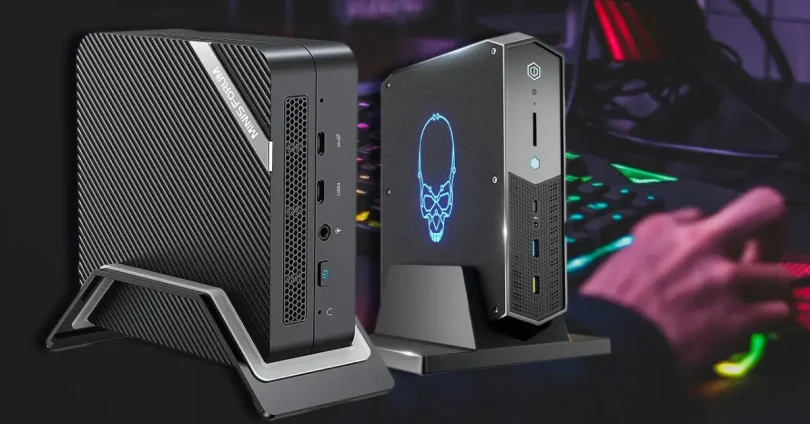

Technology is evolving at a rapid pace—not just in power, but in size. Devices that once filled entire rooms can now fit in the palm of your hand. From smartphones to smartwatches, the trend is clear: tech is getting smaller, smarter, and more efficient.
One standout example of this trend is the mini PC. A mini PC is a compact, fully functional computer that offers much of the power of a traditional desktop but in a significantly smaller form factor. These tiny machines can perform everyday computing tasks, run multiple applications, and even handle light gaming or content creation—often using less power and taking up far less space.
So, why are mini PCs gaining popularity? The answer lies in their versatility, energy efficiency, affordability, and the growing demand for clutter-free, minimalist setups at home and in the workplace.
What is a Portable Mini PC?
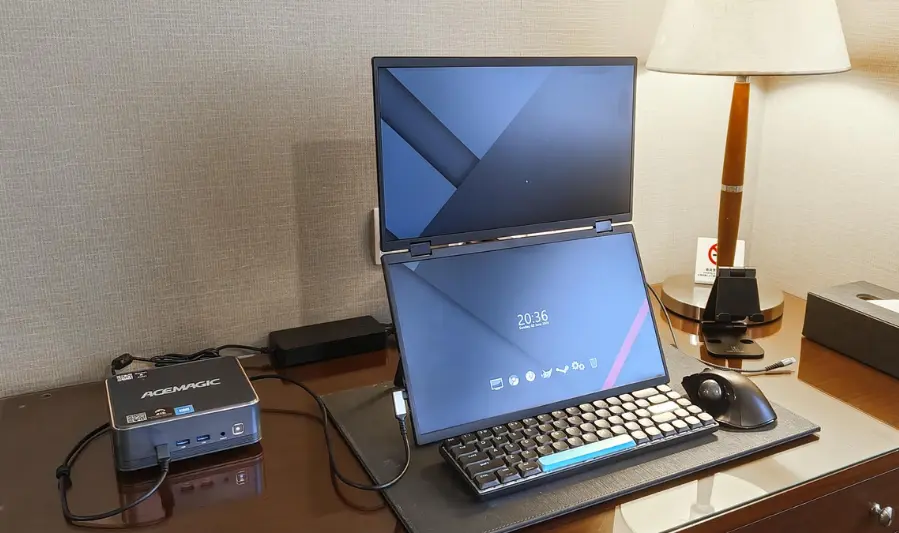
A portable mini PC is a compact, lightweight computer designed to perform the essential functions of a traditional desktop or laptop—but in a much smaller, travel-friendly form. Despite its reduced size, it often includes the key components of a full PC: a processor (CPU), memory (RAM), storage, and connectivity options like USB ports, HDMI, and Wi-Fi.
Form Factor and Portability
Portable mini PCs typically range in size from a deck of cards to a small paperback book. They are built for mobility—easy to carry in a bag or even a pocket—making them ideal for users who need computing power on the go, without the bulk of a full-size system.
How Do Mini PCs Compare?
| Feature | Traditional Desktop | Laptop | Portable Mini PC |
|---|---|---|---|
| Size | Large | Medium (compact) | Very small / ultra-compact |
| Portability | Stationary | Portable | Highly portable |
| Power Supply | External (plugged in) | Built-in battery | Usually external adapter |
| Upgradability | High | Limited | Varies, often limited |
| Performance | High (customizable) | Medium to high | Medium (for size) |
While desktops offer raw power and upgradeability, and laptops combine portability with performance, mini PCs strike a balance: they’re small enough to carry anywhere but still capable of handling common tasks like browsing, streaming, office work, and even light gaming or programming.
Common Mini PC Designs
- Box-Type Mini PCs
- Small cube or rectangle shapes
- Includes ports for USB, HDMI, Ethernet, and audio
- Examples: Intel NUC, ASUS PN series, Mac Mini
- Stick PCs (PC-on-a-stick)
- Resemble oversized USB drives
- Plug directly into an HDMI port on a monitor or TV
- Examples: Intel Compute Stick, ASUS VivoStick
- Modular Mini PCs
- Designed with some customizable or upgradeable parts
- May allow for swapping RAM or storage
- Examples: Framework Mini PC, certain Zotac models
These compact designs cater to different needs—whether you’re setting up a home theater PC, creating a portable workstation, or powering a digital signage display.
Advantages of Mini PCs
Mini PCs are gaining popularity for good reason. They combine functionality with a compact design, making them ideal for both home and professional use. Below are the key advantages that make mini PCs stand out:
3.1 Space-Saving Design
Mini PCs are significantly smaller than traditional desktop towers—some no bigger than a paperback book. This compact form makes them ideal for tight spaces such as dorm rooms, small apartments, home offices, or minimalist workstations. With fewer cables and less clutter, your workspace stays clean and organized.
3.2 Portability for Travel and Work
Designed with mobility in mind, mini PCs are lightweight and easy to transport. Whether you’re a digital nomad, remote worker, or someone who frequently travels, you can carry your entire computer setup in a backpack. Just plug it into any monitor or TV, and you’re ready to work or stream on the go.
3.3 Lower Power Consumption
Mini PCs generally use energy-efficient components, resulting in significantly lower power usage compared to full-sized desktops. This not only helps reduce electricity costs but also makes them more environmentally friendly—ideal for 24/7 operations like home servers, media centers, or business kiosks.
3.4 Quiet or Fanless Operation
Many mini PCs are engineered to operate silently. Fanless models use passive cooling, which eliminates noise entirely and reduces dust build-up. Even fan-equipped versions are often much quieter than traditional desktops, making them perfect for quiet environments like bedrooms, offices, or recording studios.
3.5 Versatile Mounting Options
Mini PCs often support VESA mounting, allowing them to be attached directly to the back of a monitor, under a desk, or even to a wall. This not only saves desk space but also keeps your setup tidy and cable management simple. Some models even include mounting kits right in the box.
Disadvantages or Limitations of Mini PCs
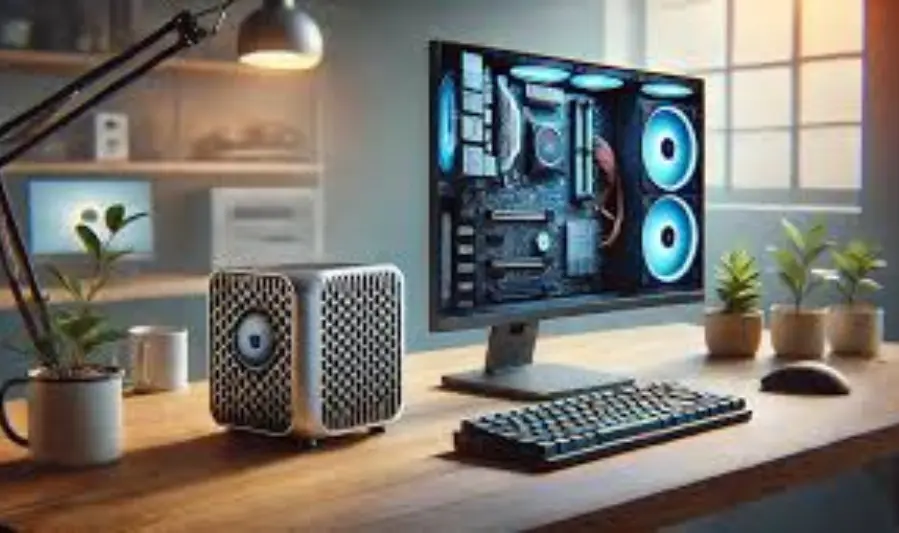
While mini PCs offer many benefits—like portability, efficiency, and compact design—they’re not without trade-offs. Depending on your specific needs, these limitations might be important to consider:
1. Limited Upgrade Potential
Unlike traditional desktops, most mini PCs have very limited internal upgrade options.
- Many models have soldered RAM or CPUs, meaning you can’t replace or upgrade them later.
- Storage options may also be restricted to one or two drives (typically M.2 or 2.5″ SSDs).
This makes mini PCs less future-proof for users who like to customize or expand their systems over time.
2. Limited GPU Performance for Gaming or 3D Tasks
Due to their small size and power constraints, mini PCs rarely include dedicated graphics cards.
- Most rely on integrated graphics, which are fine for everyday tasks, streaming, and even light gaming—but they struggle with:
- AAA gaming titles
- 3D modeling/rendering
- Video editing at professional levels
High-performance gaming or creative workstations are still better served by traditional desktops or high-end laptops with discrete GPUs.
3. Fewer I/O Ports on Some Models
Some mini PC models, especially ultra-compact or stick PCs, offer fewer connectivity options.
- You might find a limited number of USB ports, no Ethernet jack, or only one video output.
- This can be restrictive if you rely on multiple peripherals or external displays.
While USB hubs and docking stations can help, they add to the overall cost and complexity of your setup.
In summary, mini PCs are excellent for lightweight, space-saving computing—but they may fall short for users who need powerful hardware, high expandability, or extensive connectivity.
you may also like to read these posts:
Best Gaming PCs Under $1000 in 2025 for Smooth
Best Business Computers in 2025: Performance & Reliability
All-in-One Computers Guide 2025: Best Picks & Buying Tips
Powerful & Compact: Best Portable Mini PCs for Work
Common Use Cases for Mini PCs
Mini PCs are incredibly versatile, serving a wide range of users and scenarios. Their compact form, quiet operation, and capable performance make them suitable for many practical applications across home, business, and education.
5.1 Remote Work & Home Office
Mini PCs are an excellent choice for remote workers or anyone setting up a home office.
- They’re powerful enough for everyday productivity tasks like email, web browsing, video calls, and document editing.
- Their small size allows for a clean, clutter-free desk setup, and many support dual-monitor output for improved multitasking.
- Models with VESA mounting can attach directly behind a monitor, creating a compact all-in-one workstation.
5.2 Media Centers / Home Theater PCs (HTPCs)
Thanks to their quiet operation and HDMI output, mini PCs are ideal for transforming any TV into a smart media hub.
- Stream movies, TV shows, and music from services like Netflix, Plex, and Spotify.
- Store or stream local media files in high resolution (up to 4K).
- Run lightweight Linux-based or Windows-based HTPC software for a dedicated media experience.
5.3 Digital Signage and Business Use
Businesses often use mini PCs for powering digital signage, kiosks, or POS (point-of-sale) systems.
- They’re discreet and easy to mount behind monitors or displays.
- Many run 24/7 with low power consumption and minimal maintenance.
- In retail, restaurants, and corporate environments, they can control displays, manage menus, show ads, or serve as interactive terminals.
5.4 Travel and Portable Workstations
For professionals who travel frequently, mini PCs offer a reliable and portable computing solution.
- Much lighter and smaller than even the slimmest laptops, they fit easily in a carry-on.
- Ideal for mobile presentations, customer demos, or temporary workstations at hotels or client sites—just plug into any monitor or TV.
- Developers, creatives, or tech support teams often use them to bring a full OS environment anywhere.
5.5 Educational Purposes / Coding Practice
Mini PCs are great tools for students, educators, and beginner programmers.
- Affordable and capable of running full operating systems (Windows, Linux, etc.).
- Perfect for learning coding, experimenting with operating systems, or setting up a test environment.
- Schools and educational programs often use them for lab setups or remote learning solutions.
From entertainment to education and business, mini PCs continue to prove their value in a variety of real-world scenarios. Their adaptability makes them a smart choice for anyone needing compact, efficient computing power.
Key Specs to Consider Before Buying a Mini PC
When choosing a mini PC, understanding the core specifications is crucial to ensure it meets your needs. Here’s what to look for:
6.1 Processor (CPU)
The CPU is the heart of your mini PC and determines its overall performance.
- Intel Core (i3, i5, i7) and AMD Ryzen processors are common in mini PCs, offering a good balance between power and efficiency.
- For basic tasks like browsing or office work, entry-level CPUs (Intel Celeron, Pentium, or AMD Athlon) may suffice.
- For heavier workloads such as video editing or multitasking, aim for mid-range or high-end CPUs.
6.2 RAM
RAM affects how many applications you can run smoothly at once.
- 8GB is typically the sweet spot for general use, including office apps, streaming, and light multitasking.
- For gaming, content creation, or running multiple heavy apps, consider 16GB or more.
- Check if the RAM is soldered or upgradeable—some mini PCs allow RAM upgrades, others don’t.
6.3 Storage Type & Capacity
Storage impacts speed and how much data you can store locally.
- SSD (Solid State Drive) is preferred for faster boot times and app loading compared to traditional HDDs.
- Typical mini PCs come with SSD sizes ranging from 128GB to 1TB.
- Some models offer expandable storage options via M.2 slots or external drives.
6.4 Graphics Capabilities (Integrated vs Dedicated GPU)
Most mini PCs rely on integrated graphics (built into the CPU), which handle everyday tasks well but aren’t designed for heavy gaming or 3D rendering.
- If gaming or graphics-intensive work is a priority, look for models with a dedicated GPU, though these are rare and usually larger.
- External GPU (eGPU) support via Thunderbolt can be an option for advanced users.
6.5 Connectivity (Wi-Fi, Bluetooth, Ethernet)
Reliable connectivity is essential for smooth online experiences.
- Most mini PCs come with Wi-Fi 5 or Wi-Fi 6 and Bluetooth 4.2 or higher for wireless connections.
- Wired Ethernet ports are useful for stable, high-speed network access—important for streaming, gaming, or large file transfers.
6.6 Ports and Expansion
The variety and number of ports determine how many peripherals you can connect.
- Look for sufficient USB ports (Type-A and Type-C) for keyboards, mice, external drives, and accessories.
- HDMI and/or DisplayPort outputs are necessary for connecting monitors; some models support dual or even triple displays.
- Other useful ports include audio jacks, SD card readers, and Thunderbolt.
- Consider future expansion needs—some mini PCs offer slots for adding storage or upgrading RAM.
6.7 Operating System
Choose a mini PC that runs an OS compatible with your work or entertainment needs.
- Most mini PCs come with Windows 10/11, offering broad software compatibility.
- Some models run Linux, preferred by developers or users wanting an open-source system.
- Others may use Chrome OS or specialized OSes for media centers or business applications.
Choosing the right combination of these specs depends largely on your intended use—whether it’s for basic productivity, multimedia, gaming, or professional workloads. Taking the time to match specs to your needs will ensure a satisfying mini PC experience.
Comparison: Mini PC vs Desktop vs Laptop
| Feature | Mini PC | Desktop | Laptop |
|---|---|---|---|
| Size | Very compact, fits in the palm or small space | Large tower or full-size case | Medium, portable but bulkier than mini PC |
| Performance | Moderate to high (depends on model, limited by size) | High (can be customized with powerful CPUs/GPUs) | Moderate to high (depends on model, often balanced for mobility) |
| Portability | Highly portable, easy to carry | Stationary, not portable | Portable, designed for mobility |
| Cost | Affordable to mid-range, generally less than desktops | Wide range, generally higher for powerful setups | Generally more expensive due to integrated screen, battery |
| Upgradeability | Limited (RAM, storage sometimes upgradable; CPU rarely) | High (easy to upgrade CPU, GPU, RAM, storage) | Limited (mostly RAM and storage; CPU/GPU usually fixed) |
Detailed Breakdown
- Size:
Mini PCs win for the smallest footprint, ideal for cramped spaces. Desktops are the largest, needing a dedicated desk or floor space. Laptops offer a middle ground—portable but larger than mini PCs. - Performance:
Desktops typically deliver the highest raw performance because of larger cooling capacity and space for powerful components. Mini PCs can be surprisingly capable but often sacrifice top-tier GPUs or CPUs to fit the small chassis. Laptops vary widely but tend to balance performance with battery life and size constraints. - Portability:
Mini PCs are extremely portable, often just a few inches in size and easy to pack. Laptops are built for mobility with built-in screens and batteries. Desktops, meanwhile, are stationary and require a fixed setup. - Cost:
Mini PCs are usually more affordable than desktops with similar specs due to smaller components and less customization. Laptops tend to be pricier because they combine screen, keyboard, battery, and computing hardware in one unit. - Upgradeability:
Desktops are the easiest to upgrade, allowing users to swap out almost every component. Mini PCs offer limited upgrades—some let you add RAM or SSDs, but CPUs and GPUs are often soldered. Laptops are the most restrictive, typically allowing only RAM and storage upgrades.
Top Mini PC Brands & Models in 2025
1. Intel NUC 13th Gen (e.g., NUC13ANHi5, NUC13ANHi7)
- Pros:
- Compact and sleek design.
- Supports up to 64GB DDR5 RAM.
- Dual 4K display support via HDMI and DisplayPort.
- Wide compatibility with various operating systems.
- Cons:
- Limited GPU performance; not suitable for high-end gaming.
- Some models may have limited I/O ports.
- Ideal For: Home offices, media centers, and light productivity tasks.Windows CentralFeature Lens+1
2. Apple Mac Mini (M2/M3)
- Pros:
- Exceptional performance with Apple’s custom silicon.
- Silent operation and energy-efficient.
- Seamless integration with macOS and Apple ecosystem.
- Cons:
- Higher price point compared to other mini PCs.
- Limited upgradeability; RAM is soldered.
- Ideal For: Creative professionals, developers, and users invested in the Apple ecosystem.
3. Beelink EQ14
- Pros:
- Affordable price point.
- Compact and portable design.
- Dual M.2 slots for storage expansion.
- Cons:
- Single-channel DDR4 memory.
- Limited gaming capabilities.
- Ideal For: Budget-conscious users needing a basic computing solution.
4. GMKtec NucBox M6 Ultra
- Pros:
- Powerful AMD Ryzen 5 7640HS processor.
- 32GB DDR5 RAM and 1TB SSD.
- Dual 2.5G Ethernet ports and USB4 support.
- Supports external GPU via USB4.
- Cons:
- Potential thermal management issues under heavy load.
- Build quality may not match premium brands.
- Ideal For: Users seeking high performance in a compact form factor.TechRadar+2Feature Lens+2Amazon+1
5. ASUS PN Series
- Pros:
- Wide range of configurations to suit various needs.
- Reliable build quality.
- Good thermal performance.
- Cons:
- Some models may be pricier than competitors.
- Limited GPU options; not suitable for high-end gaming.
- Ideal For: Business environments and educational institutions.
6. Lenovo ThinkCentre Tiny
- Pros:
- Enterprise-grade reliability.
- VESA mountable for space-saving setups.
- Extensive warranty and support options.
- Cons:
- Higher cost compared to consumer-grade mini PCs.
- Limited GPU performance.
- Ideal For: Corporate environments and professional workstations.
7. HP EliteDesk Mini
- Pros:
- Robust security features.
- Compact and durable design.
- Good range of ports and connectivity options.
- Cons:
- May be overkill for casual users.
- Limited upgradeability.
- Ideal For: Enterprise users and secure computing needs.
Comparison Table
| Model | Processor | RAM Support | Storage Options | GPU Support | Ideal Use Case |
|---|---|---|---|---|---|
| Intel NUC 13th Gen | Intel Core i5/i7 | Up to 64GB | Dual M.2 SSD | Integrated Intel Iris Xe | Home office, media center |
| Apple Mac Mini (M2/M3) | Apple M2/M3 | Unified RAM | SSD | Integrated Apple GPU | Creative work, Apple ecosystem |
| Beelink EQ14 | Intel N150 | 16GB DDR4 | Dual M.2 SSD | Integrated Intel UHD | Budget computing, basic tasks |
| GMKtec NucBox M6 Ultra | AMD Ryzen 5 7640HS | Up to 128GB | Dual M.2 SSD | Integrated Radeon 760M | High performance, external GPU support |
| ASUS PN Series | Intel Core i3/i5/i7 | Up to 64GB | Dual M.2 SSD | Integrated Intel UHD | Business, education |
| Lenovo ThinkCentre Tiny | Intel Core i5/i7 | Up to 64GB | Dual M.2 SSD | Integrated Intel UHD | Enterprise, professional work |
| HP EliteDesk Mini | Intel Core i5/i7 | Up to 64GB | Dual M.2 SSD | Integrated Intel UHD | Secure computing, enterprise |
Essential Mini PC Accessories
1. External Keyboard & Mouse
- Wireless Options: Opt for Bluetooth or USB receiver-based wireless keyboards and mice to reduce cable clutter.
- Ergonomic Designs: Consider models like the Logitech ERGO K860 keyboard, which offers a curved design for natural typing posture, and the Logitech MX Anywhere 3S mouse, known for its portability and precision.
- Budget-Friendly: The Logitech SilentTouch keyboard and mouse combo provides quieter operation, ideal for shared workspaces.
2. Monitor
- High-Resolution Displays: Invest in monitors with at least 1080p resolution for clear visuals.
- Portable Options: For on-the-go setups, consider portable monitors like the Arzopa 14-inch 1080p display, which is compact and easy to transport.
- Ergonomic Stands: Ensure the monitor has adjustable height and tilt to promote good posture.
3. Docking Station or USB Hub
- Multi-Port Hubs: Devices like the UGREEN 6-in-1 USB-C Hub offer multiple ports, including HDMI, USB-A, and SD card readers, expanding connectivity options.
- High-Performance Docks: For advanced setups, the Plugable Thunderbolt 5 Dock provides 11 ports, dual 8K display support, and up to 140W host charging, enhancing both connectivity and power delivery.
4. External Storage or SSDs
- Portable Drives: External SSDs like the Seagate 2TB Portable External Hard Drive offer ample storage space and fast data transfer rates, ideal for backups and large file storage.
- Tool-Free Docking: The ORICO Aluminum Hard Drive Dock allows for easy swapping of 2.5″ and 3.5″ drives without the need for tools, supporting up to 8TB drives.
5. VESA Mount Kits
- Space-Saving Solutions: VESA mount kits enable you to attach your mini PC behind a monitor, freeing up desk space and creating a cleaner workspace.
- Compatibility: Ensure the mount is compatible with your mini PC’s size and weight specifications.
Additional Considerations
- Cable Management: Use cable organizers to keep your workspace tidy and prevent tangling.
- Surge Protector: Protect your equipment from power surges by using a quality surge protector.
- Cooling Solutions: Consider laptop cooling pads or stands to prevent overheating during extended use.
1. Identify Your Usage
Understanding your primary use case is crucial:
- Media Consumption & Home Office: Opt for models with efficient processors and sufficient RAM to handle multitasking and media streaming.
- Gaming: Choose mini PCs equipped with dedicated GPUs and high-performance CPUs to ensure smooth gameplay.
- Content Creation: Look for systems with robust processing power, ample RAM, and high-resolution display support for tasks like video editing and graphic design.
- General Productivity: For everyday tasks, a balanced mini PC with adequate specs will suffice.
2. Choose the Right Specifications
Tailor the specifications to your needs:
- Processor (CPU): Select based on performance requirements; higher-end CPUs are beneficial for intensive tasks.
- RAM: Ensure sufficient memory for your tasks; 8GB is standard, but 16GB or more is preferable for demanding applications.
- Storage: SSD offers faster data access speeds compared to HDD.
- Graphics: Integrated graphics are suitable for basic tasks, while dedicated GPUs are necessary for gaming and content creation.
3. Balance Budget and Performance
- Entry-Level: Suitable for basic tasks like browsing and document editing.
- Mid-Range: Offers better performance for multitasking and light gaming.
- High-End: Designed for intensive tasks, gaming, and professional applications.
Investing in a higher-end model can provide longevity and better performance, but ensure it aligns with your actual usage needs.
4. Consider Future-Proofing
- Upgradability: Check if the mini PC allows for future upgrades in RAM, storage, or other components.
- Connectivity: Ensure it supports the latest ports and wireless standards to accommodate future peripherals and networks.
- Software Support: Opt for models that receive regular firmware and driver updates to ensure compatibility with new software.
5. Warranty and Support
- Warranty Period: A minimum of one year is standard; some manufacturers offer extended warranties.
- Customer Support: Evaluate the manufacturer’s reputation for customer service and support responsiveness.
- Return Policy: Check if the seller offers a return or exchange policy in case the product doesn’t meet expectations.
Final Tips
- Read Reviews: Look for user and expert reviews to gauge real-world performance and reliability.
- Compare Models: Use comparison tools to evaluate different mini PCs based on your criteria.
- Test Before Buying: If possible, test the mini PC in-store or ensure there’s a trial period to assess its suitability.
Faqs:
Can a portable mini PC replace a traditional desktop?
Yes, for most everyday tasks like web browsing, office work, media streaming, and light photo editing, a mini PC can effectively replace a desktop. However, for heavy gaming or specialized professional software, a desktop might still be better.
Are mini PCs good for gaming?
Mini PCs can handle casual or older games well, especially those with integrated graphics. For high-end gaming, you’ll need a model with a dedicated GPU or a larger desktop gaming PC.
How portable are mini PCs?
Very portable! Most mini PCs are small enough to fit in a backpack or even a large pocket (like stick PCs). They’re ideal for people who travel frequently but need desktop-level power.
Can I upgrade a mini PC?
It depends on the model. Many mini PCs allow upgrades to RAM and storage, but CPU and GPU upgrades are usually limited or not possible.
Do mini PCs need external peripherals?
Yes, mini PCs typically don’t come with built-in screens, keyboards, or mice, so you’ll need to connect these separately. They can easily connect to any monitor or TV with HDMI or DisplayPort.
Conclusion:
Portable mini PCs are revolutionizing the way we think about computing—offering powerful performance packed into a small, convenient form factor. Whether you’re a remote worker, student, media enthusiast, or business owner, mini PCs provide a versatile, energy-efficient, and space-saving solution that adapts to your needs.
By understanding the features, use cases, and limitations, you can choose the perfect mini PC to streamline your workflow, enhance entertainment, or stay productive on the go. Ready to upgrade your tech setup without sacrificing portability or power? A portable mini PC might just be the smart, compact solution you’ve been looking for.