
Introduction
In 2025, as digital content continues to grow at an unprecedented rate, external hard drives remain an essential tool for managing data efficiently. Whether you’re a student, professional, creative, or casual user, having reliable external storage is more important than ever—especially as file sizes increase and cloud subscriptions remain costly or limited by internet access.
External hard drives offer a practical and secure way to:
- Back up critical files and system data
- Store large media libraries such as photos, videos, and games
- Share files across devices or with others without relying on the cloud
- Extend storage for laptops, consoles, or mobile setups
- Maintain portability, enabling access to your data on the go
This guide will help you understand the key features to look for in an external hard drive, highlight the top options available in 2025, compare SSDs vs HDDs, and provide tips for maximizing performance and data protection—ensuring you choose the best solution for your needs.
Why You Might Need an External Hard Drive
1. Expanding Internal Storage for Laptops or PCs
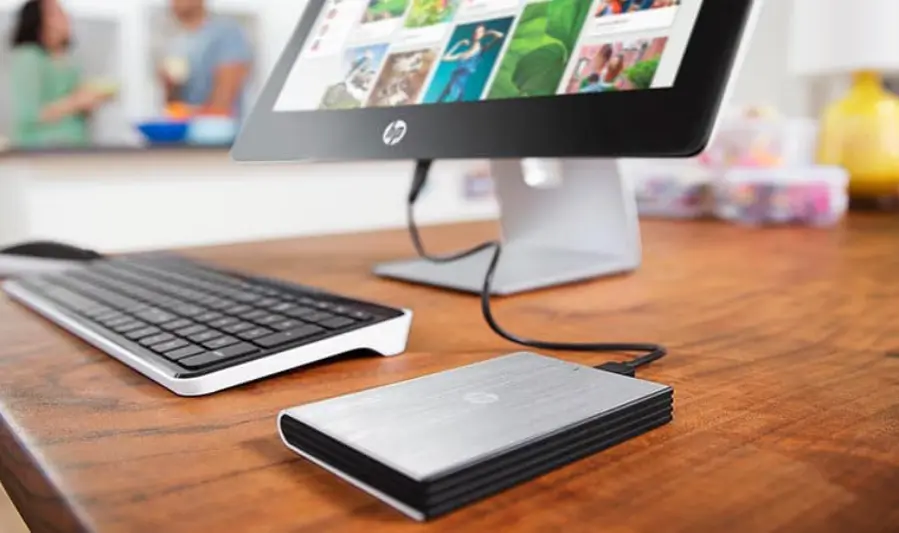
Modern laptops and even many desktops come with limited internal storage—especially models with fast but smaller solid-state drives (SSDs). An external hard drive gives you the space to offload large files, media libraries, or software, helping keep your internal drive optimized for performance.
2. Creating Backups for Important Files
Data loss can happen due to system failure, accidental deletion, or cyberattacks like ransomware. Using an external hard drive as a backup solution—whether through manual file copying or automated backup software—adds a critical layer of protection. It’s especially useful for storing documents, photos, project files, and system images.
3. Transporting Large Files Easily
While cloud storage is convenient, it isn’t always the fastest or most secure option—especially with very large files like raw videos or design projects. An external hard drive allows fast, physical transfers between devices, making it ideal for work collaboration, media production, or students sharing files.
4. Using External Drives for Gaming Consoles or Media Libraries
Game installations, updates, and media files are increasingly large. Many people use external drives to expand storage on gaming consoles (like PlayStation, Xbox, or even Steam Deck), or to host large movie and music libraries. This keeps internal console storage free and improves loading times with compatible external SSDs.
Types of External Hard Drives
1. HDD (Hard Disk Drive)
Advantages
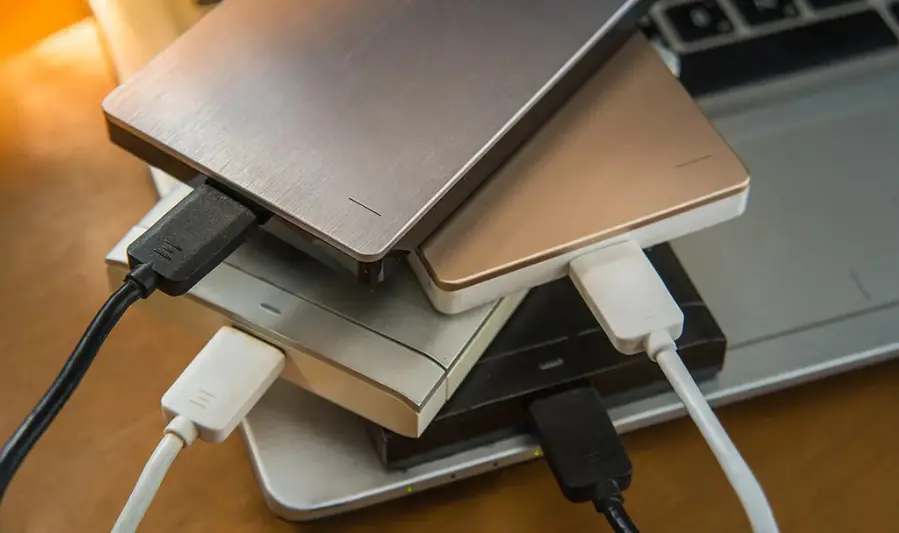
- High capacity at low cost: HDDs offer large storage capacities (1TB to 18TB+) at relatively affordable prices.
- Reliable for long-term storage: Great for archiving large files that don’t require frequent access.
- Widely available: Compatible with nearly all devices and platforms.
Limitations
- Slower read/write speeds: Typically much slower than SSDs, especially when transferring large files or launching applications.
- Fragility: Moving parts make HDDs more prone to physical damage from drops or vibration.
- Heavier and bulkier: Less portable compared to SSDs.
Ideal Use Cases
- Backing up photos, videos, and documents.
- Long-term file storage and archiving.
- Expanding storage for media libraries (movies, music, etc.).
- Budget-conscious users who need lots of space.
2. SSD (Solid State Drive)
Advantages
- Faster performance: SSDs have much higher read/write speeds, ideal for transferring large files quickly or running software directly from the drive.
- Durable and shock-resistant: No moving parts means they’re better suited for travel or frequent transport.
- Compact and lightweight: Extremely portable and often pocket-sized.
Limitations
- More expensive per gigabyte: SSDs tend to cost more than HDDs for the same storage size.
- Lower max capacities (on a budget): Affordable SSDs typically range from 250GB to 2TB.
When to Choose an SSD Over an HDD
- When speed is a priority (video editing, gaming, bootable drives).
- If you frequently carry your drive while commuting or traveling.
- For running applications directly from the drive (like portable software or game libraries).
3. Hybrid and Other Specialty Drives (Optional)SSHD (Solid State Hybrid Drive)
- Combines an HDD with a small SSD cache.
- Offers faster performance than HDDs but not as fast as full SSDs.
- Rarely used in external drives; more common in internal laptop storage.
RAID External Drives
- Multiple drives combined into a single unit for performance (RAID 0) or redundancy (RAID 1 and others).
- Ideal for professionals needing backup security or fast data throughput.
Encrypted/Portable Secure Drives
- Built-in hardware encryption and password protection for sensitive data.
- Often used in corporate or travel scenarios.
you may also like to read these posts:
Wireless Keyboard Buying Guide 2025: Best Models Reviewed
Ultimate Top Gaming Mouse Review: Performance, Features & Value
Affordable Headphones with Mic: Best Picks Under $50
The Ultimate External Hard Drives Buying Guide
Summary
| Feature | HDD | SSD |
|---|---|---|
| Speed | Moderate | Very fast |
| Durability | Prone to damage | Shock-resistant |
| Capacity (budget) | 1TB–18TB | 250GB–2TB |
| Price per GB | Lower | Higher |
| Portability | Bulkier | Lightweight |
| Best For | Archives, backups, media | Travel, editing, fast access |
Key Features to Consider When Buying
1. Storage Capacity
Choosing the right capacity depends on how you plan to use the drive:
- 500GB–1TB: Suitable for everyday use—documents, photos, and small backups.
- 2TB–4TB: Great for larger media libraries, gaming storage, or regular backups of full systems.
- 4TB+: Ideal for video editors, photographers, or anyone archiving massive amounts of data (RAW footage, large software projects, etc.).
Tip: Go for more space than you think you need—data grows quickly.
2. Transfer Speed
The interface used directly affects how fast your files move between the drive and your device:
- USB 2.0: Very slow by today’s standards (~30 MB/s). Best avoided unless you’re only transferring small files occasionally.
- USB 3.0 / 3.1 / 3.2 Gen 1: Much faster (~100–150 MB/s for HDDs, up to 500+ MB/s for SSDs). The current minimum you should aim for.
- USB-C: A connector type that can support USB 3.2 or Thunderbolt speeds. Also reversible and more future-proof.
- Thunderbolt 3 / 4: Extremely fast (up to 40 Gbps). Ideal for high-performance SSDs and professional workloads, but more expensive.
3. Portability
If you travel or commute often, portability matters:
- Size and Weight: SSDs are more compact and lighter than HDDs.
- Rugged Design: Look for drives marketed as “portable” or “rugged” if you need one that can handle bumps, drops, or being tossed in a bag.
4. Durability
A more durable drive offers peace of mind—especially when storing valuable data.
- Shock Resistance: SSDs are naturally more shock-resistant than HDDs due to the lack of moving parts.
- Water/Dust Resistance: Some external drives have an IP rating (e.g., IP67), offering protection against dust and limited water exposure. Great for fieldwork or harsh environments.
- Build Quality: Metal enclosures offer better heat dissipation and strength compared to plastic ones.
5. Software and Encryption Features
Some drives come bundled with useful utilities:
- Backup Software: Automates regular backups of selected folders or your entire system.
- Password Protection: Prevents unauthorized access if the drive is lost or stolen.
- Hardware Encryption: Encrypts your data on the fly without slowing down performance. Look for AES 256-bit encryption for strong security.
6. Compatibility with Operating Systems and Devices
Make sure your drive works seamlessly with your setup:
- Format Type:
- NTFS: Read/write on Windows; read-only on macOS unless reformatted.
- exFAT: Compatible with both Windows and macOS. Recommended for most users.
- HFS+ / APFS: Optimized for macOS, not easily usable on Windows.
- Console Compatibility: For PS5, Xbox Series X, and others, make sure the drive supports formatting and read/write speed requirements.
Final Tip:
Check what ports your device supports (USB-A, USB-C, Thunderbolt) before buying. Buying a fast drive is only worth it if your computer can take advantage of it.
Top External Hard Drives in 2025
1. WD My Passport (HDD)
Features: Portable HDD available in capacities up to 6 TB. USB‑C compatible (via adapter), built-in hardware AES‑256 encryption, bundled backup software.
Pros:
- Excellent value for high-capacity storage.
- Lightweight, pocket-sized design.
- Secure data storage via encryption and bundled backup tools.
Cons:
- Slower transfer speeds compared to SSDs (around 120 MB/s).
- Connector is Micro-B/USB 3.2 Gen 1—not a true USB‑C port.
- Being an HDD, it’s more vulnerable to physical knocks.
Best Use Case: Cost-conscious users needing large storage for backups, media libraries, or large project files.
2. Samsung T7 Portable SSD
Features: Compact SSD with USB 3.2 Gen 2 interface, up to 1,050 MB/s read/write speeds, AES‑256 encryption, shock-resistant housing.
Pros:
- Fast transfer speeds ideal for large file handling.
- Lightweight and easy to carry (around 58 g).
- Secure with hardware encryption.
- Excellent value relative to performance.
Cons:
- No official IP rating—limited resistance to water/dust.
- Short included cable may limit flexibility.
- Can heat up under heavy usage.
Best Use Case: Users needing fast, portable storage for media editing, backups, or gaming where speed and portability matter.
3. Seagate Backup Plus (HDD)
Features: HDD available in multiple capacities, pre-loaded with backup utilities, supports Windows and macOS integration, modular interface design for future compatibility.
Pros:
- Helpful software for seamless backups.
- Versatile with cross-platform compatibility.
- Potential support for multiple interfaces for adaptability.
Cons:
- Traditional HDD limitations (slower speeds, moving parts).
- Older model—may not match newer features of 2025 offerings.
Best Use Case: Users prioritizing simple backup routines and broad device compatibility on a budget.
4. SanDisk Extreme Portable SSD (V2)
Features: Rugged, IP65 rated SSD with up to 1,050 MB/s read and 1,000 MB/s write speeds, drop-resistant (up to 3 m), AES‑256 hardware encryption, 5-year warranty.
Pros:
- Highly durable—excellent for travel and fieldwork.
- Fast and consistent performance with strong encryption.
- Extended warranty adds peace of mind.
Cons:
- Higher price compared to more basic SSDs.
- Reports of some reliability issues and drive failures—best practice is to keep backups.
Best Use Case: Travelers, content creators, or professionals needing fast, rugged, and secure portable storage.
5. LaCie Rugged Mini SSD
Features: SSD with USB 3.2 Gen 2×2 interface (~20 Gb/s), shock-resistant with iconic orange bumper, includes data recovery service and backup software.
Pros:
- Eye-catching design with good initial write speeds.
- Includes data recovery service—rare in this category.
- Built-in backup/security software enhances usability.
Cons:
- Sustained write speeds drop after ~600 GB of data due to cache exhaustion.
- Larger and bulkier than competing SSDs.
- Short included cable reduces flexibility.
Best Use Case: Users who need stylish and durable storage and occasional fast transfers—but who don’t regularly move huge data volumes.
Quick Comparison Table
| Model | Type | Highlights | Best For |
|---|---|---|---|
| WD My Passport | HDD | Large capacity, low cost, encrypted | Backups & media storage |
| Samsung T7 SSD | SSD | Fast, portable, encrypted | Fast transfers & gaming |
| Seagate Backup Plus | HDD | Backup software, cross-platform | Simple backups & compatibility |
| SanDisk Extreme SSD (V2) | SSD | Rugged, fast, secure | Travel and outdoor use |
| LaCie Rugged Mini SSD | SSD | Durable design, recovery service | Occasional fast transport |
How to Set Up and Use an External Hard Drive
1. Formatting the Drive
Before using your external hard drive, format it to match your operating system or to make it work across both Windows and macOS. This ensures compatibility and proper performance.
For Windows-Only Use
- Recommended Format: NTFS (New Technology File System)
- Pros: Supports large files, Windows system features (like permissions), and better performance on Windows.
- How to Format:
- Plug in your drive.
- Open File Explorer → Right-click the drive → Select Format.
- Choose NTFS, leave allocation size as default, and click Start.
For macOS-Only Use
- Recommended Format: APFS (Apple File System) or HFS+ (Mac OS Extended)
- Pros: Native performance on macOS; ideal for Time Machine backups.
- How to Format:
- Open Disk Utility (Applications → Utilities).
- Select the drive, click Erase.
- Choose APFS or Mac OS Extended (Journaled).
For Cross-Platform Use (Windows + Mac)
- Recommended Format: exFAT
- Pros: Compatible with both macOS and Windows, supports large files.
- How to Format:
- Same as above, but select exFAT instead of NTFS or HFS+.
2. Installing Backup or Encryption Software
Some external drives come with built-in or optional software for automated backups or encryption.
Installing Backup Software
- Brand-Specific: WD Backup, Seagate Toolkit, LaCie Toolkit, etc.
- Generic: Use macOS Time Machine or Windows File History for built-in options.
- Third-party tools: Acronis True Image, EaseUS Todo Backup.
Steps:
- Visit the manufacturer’s website or use the preloaded installer on the drive.
- Install the software and configure automatic backup schedules and folders.
- Select your external drive as the backup destination.
Setting Up Encryption
- Some drives offer hardware encryption (configured via brand software).
- For manual setup:
- macOS: Use FileVault or Disk Utility → Encrypt.
- Windows: Use BitLocker (Pro editions only) or third-party tools like VeraCrypt.
3. How to Safely Eject and Maintain Your Drive
Safe Ejection
Always eject your external hard drive properly to avoid corrupting data:
- Windows: Right-click the drive in File Explorer → Eject.
- macOS: Drag the drive to Trash, or click the eject icon next to it in Finder.
General Maintenance Tips
- Keep firmware and software up to date. Check the manufacturer’s support page for updates.
- Avoid unplugging while writing data. Wait for file transfers to finish before removing.
- Protect the drive from physical damage. Use padded cases and avoid drops or exposure to heat or water.
- Run regular disk checks.
- Windows: chkdsk or error checking from drive properties.
- macOS: First Aid in Disk Utility.
Tips for Maintaining Your External Hard Drive
1. Avoid Physical Damage
- Handle with care: External hard drives, especially HDDs, contain sensitive components that can be damaged by shock or vibration.
- Don’t drop or jostle the drive—especially while it’s operating.
- Keep it on a stable surface when plugged in and avoid placing heavy objects on it.
2. Protect from Extreme Conditions
- Avoid extreme temperatures: Heat can degrade components, and cold can cause condensation.
- Keep away from water, dust, and direct sunlight.
- If you’re in a humid or dusty environment, consider a drive with an IP (Ingress Protection) rating.
3. Use Protective Cases When Traveling
- Invest in a shockproof, padded carrying case—especially for HDDs, which are more fragile than SSDs.
- Keep cables organized to avoid tugging or damage during transport.
- Never toss a drive loosely into a bag—movement and impact can shorten its lifespan.
4. Run Regular Health Checks
- Periodically check the drive for errors or performance issues:
- Windows: Right-click drive → Properties → Tools → Check under Error Checking.
- macOS: Open Disk Utility, select the drive, then click First Aid.
- For SSDs, use brand-specific tools (like Samsung Magician, SanDisk Dashboard, or WD Drive Utilities) to monitor wear levels and firmware status.
5. Back Up Data Regularly
- Never treat your external drive as the only copy of important files.
- Set up automated backups to another location (a second drive or cloud storage).
- Use versioned backups if possible to protect against accidental overwrites or deletions.
6. Keep Firmware and Software Updated
- Visit the manufacturer’s website to check for firmware updates that improve stability or performance.
- Keep any backup or encryption software up to date to maintain compatibility with your OS.
Bonus Tip:
If you won’t be using the drive for a while, eject it properly and store it in a cool, dry place, disconnected from your system.
Common Mistakes to Avoid
1. Using the Wrong Format for Your OS
- Formatting your drive in a file system incompatible with your operating system can cause read/write errors or data loss.
- Example: Formatting an external drive as NTFS and expecting full write access on macOS without additional software.
2. Not Safely Ejecting the Drive
- Unplugging the drive without safely ejecting can corrupt files or damage the drive’s file system.
- Always use the “Eject” or “Safely Remove Hardware” option before unplugging.
3. Ignoring Storage Limits
- Overfilling your drive beyond its capacity can cause system slowdowns or data corruption.
- Keep some free space available (at least 10-15%) for smooth operation and file management.
4. Skipping Regular Backups
- Relying solely on one external drive without backing up important data elsewhere risks permanent data loss if the drive fails.
- Always maintain multiple backups, ideally including cloud storage or a second physical drive.
Faqs:
What is the difference between an external HDD and SSD?
External HDDs use spinning disks and offer larger storage at a lower cost, while SSDs have no moving parts, providing faster speeds and better durability but at a higher price.
How much storage capacity do I need in an external hard drive?
It depends on your needs—1TB to 2TB is enough for most users, but for large media libraries or backups, 4TB or more may be necessary.
Can I use an external hard drive with both Mac and Windows?
Yes, but you may need to format the drive to a compatible file system like exFAT for cross-platform use.
Are external SSDs worth the extra cost?
If you need faster data transfer speeds and better durability, especially for on-the-go use or large file transfers, SSDs are worth the investment.
How do I safely disconnect my external hard drive?
Always use the “Eject” or “Safely Remove Hardware” option on your computer before unplugging to prevent data loss or drive corruption.
Conclusion:
External hard drives remain essential tools for expanding storage, backing up important data, and easily transporting files. Whether you choose an HDD for affordability and capacity or an SSD for speed and durability, understanding your needs will help you select the right drive. By considering factors like storage size, speed, compatibility, and durability, you can make an informed decision and ensure your data stays safe and accessible in 2025 and beyond.