
Introduction
In today’s digital-first world, high-quality video has become essential—especially for those who stream, create content, or work remotely. Whether you’re broadcasting live on Twitch or YouTube, recording online tutorials, or hosting virtual meetings, your webcam plays a key role in how you’re perceived by your audience or team.
A good webcam doesn’t just improve picture clarity—it enhances professionalism, viewer engagement, and overall production value. Blurry, laggy video can undermine even the best content, while sharp, well-lit footage helps you stand out and build credibility.
Who Needs a High-Quality Webcam?
- Streamers who want to create a polished and immersive experience for their viewers.
- Content creators filming tutorials, reviews, or online courses.
- Remote workers and professionals attending virtual meetings, webinars, and interviews.
In this blog post, we’ll explore what makes a great webcam, compare top models in 2025, and guide you through choosing one that fits your goals, setup, and budget.
Why You Need a Good Webcam for Streaming
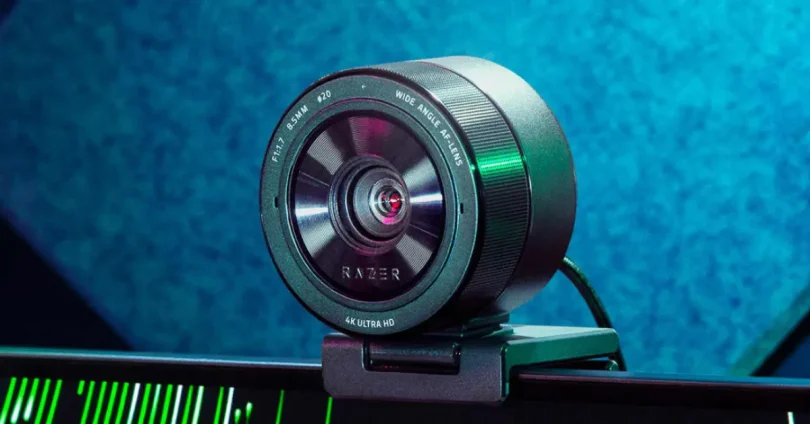
Whether you’re a professional content creator or just starting your streaming journey, the quality of your webcam can make a significant difference in how you’re perceived by your audience. Here’s why investing in a good webcam matters:
1. Better Audience Engagement
A clear, high-resolution video feed helps viewers feel more connected to you. When your facial expressions, eye contact, and reactions are easy to see, your content becomes more relatable and engaging. This visual clarity can keep viewers watching longer and encourage interaction in the chat.
2. Professional Appearance
Streaming is a competitive space, and first impressions count. A crisp, well-lit video feed signals professionalism and commitment to quality. This is especially important if you’re trying to grow a channel, land sponsorships, or establish a personal brand.
3. Clearer Communication and Interaction
If you’re teaching, gaming, or co-hosting with others, a good webcam makes communication smoother. Your audience can read your expressions clearly, which adds depth to your commentary or instructions. For creators who rely heavily on personality and connection, this is critical.
4. Reliable Performance in Different Environments
High-quality webcams often come with features like low-light correction, auto-focus, and adjustable settings. These help maintain consistent video quality whether you’re streaming in a dim room, using multiple monitors, or changing camera angles. You won’t have to constantly adjust lighting or camera position just to look decent on screen.
Key Features to Consider in a Streaming Webcam
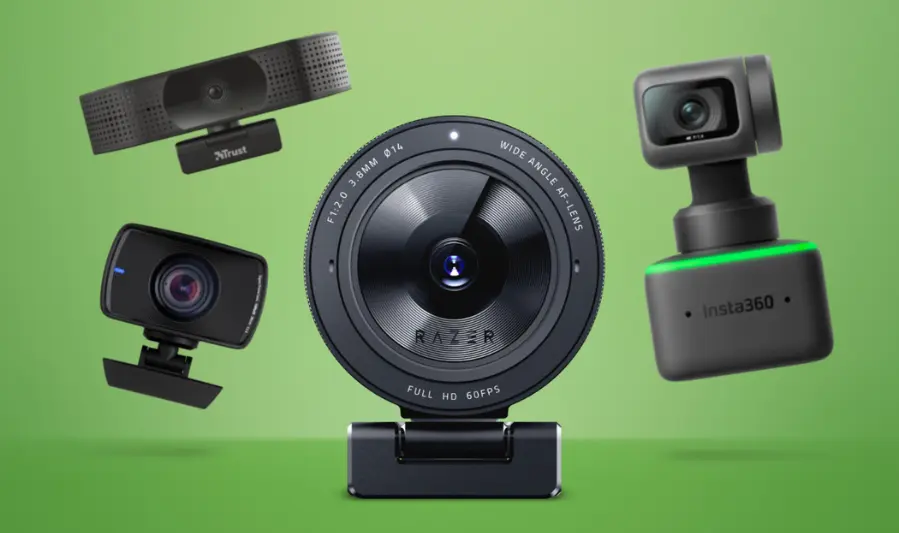
Choosing a webcam isn’t just about resolution—it’s about how well the camera performs in real-world conditions like dim lighting, fast movement, and livestreaming environments. Here’s what to look for:
1. Resolution: 720p vs 1080p vs 4K
- 720p (HD): The bare minimum. Works for basic video calls but lacks sharpness for professional streaming.
- 1080p (Full HD): Ideal for most streamers. Provides crisp, detailed video with manageable file sizes and bandwidth use.
- 4K (Ultra HD): Offers exceptional clarity—great for high-end content creation or when cropping in while maintaining image quality. Requires a strong internet connection and a powerful PC setup.
Tip: Most streamers don’t broadcast in 4K due to platform limitations (Twitch and YouTube often downscale), but it’s useful for post-editing or cropping.
2. Frame Rate: 30fps vs 60fps
- 30fps (frames per second): Standard for video calls and basic streaming. Smooth enough for casual use.
- 60fps: Essential for smoother, more fluid motion—especially for gaming streams or fast-paced content.
Note: 60fps adds realism but also increases processing demands.
3. Autofocus and Exposure Control
- Autofocus ensures your face stays sharp even if you move around or shift your position.
- Auto-exposure and white balance adapt to changing lighting conditions, helping you maintain a natural appearance.
- Look for webcams that offer manual controls via software if you want more creative control.
4. Low-Light Performance
- A quality webcam should perform well in dim environments without excessive grain or blur.
- Look for terms like “low-light correction” or sensors with good dynamic range.
- Avoid relying on brightness compensation alone—external lighting (like a ring light) can help, but the sensor quality still matters.
5. Field of View (FOV)
- 60–78° FOV: Ideal for solo streamers. Focuses tightly on your face and upper body.
- 90°+ FOV: Captures more of your surroundings—good for dual presenters, product showcases, or wide-angle creative layouts.
Caution: Wider FOVs can distort facial features or show too much background if not framed carefully.
6. Built-in Microphone vs External Mic
- Most webcams come with a built-in mic, but they rarely match the quality of dedicated USB or XLR microphones.
- Built-in mics are fine for casual use or backup, but serious streamers should invest in an external mic for clearer, richer audio.
7. Mounting Options
- Monitor Clip: Most webcams come with clips to attach to laptops or external monitors.
- Tripod Mount: Look for a ¼-inch thread mount if you want to place the webcam at eye level using a tripod or desk arm—great for custom setups.
Tip: The ability to reposition your webcam is key for achieving flattering angles and consistent framing.
8. Software Customization and Integration
- A good webcam should include or support software that lets you:
- Adjust resolution, zoom, brightness, and focus.
- Add filters or backgrounds (if needed).
- Save custom profiles for different lighting conditions or platforms.
- Look for compatibility with popular streaming tools like:
- OBS Studio / Streamlabs
- Zoom, Microsoft Teams
- NVIDIA Broadcast, Logi Tune, or Elgato Camera Hub
you may also like to read these posts:
Ultimate Top Gaming Mouse Review: Performance, Features & Value
Affordable Headphones with Mic: Best Picks Under $50
The Ultimate External Hard Drives Buying Guide
Ultimate Guide to the Best Webcams for Streaming in 2025
Best High‑End Webcams for Streaming (2025)
Logitech StreamCam Plus
- Key Features: 1080p at 60 fps, 78-degree field of view, smart vertical/horizontal mounting, Logitech Capture software with overlays and effects.
- Pros: Outstanding image quality with fluid 60 fps output; versatile orientation; rich feature set for streamers.
- Cons: Relatively expensive for a 1080p camera; lacks a physical privacy shutter.
- Best For: Streamers and content creators who need flexible framing and polished visuals, especially for formats like “Just Chatting” or creative layouts.
Elgato Facecam Pro
- Key Features: 4K resolution at 60 fps, large 1/1.8″ Sony STARVIS CMOS sensor, premium glass lens, full manual control via Camera Hub software.
- Pros: Exceptional low-light performance, ultra-sharp detail, robust manual customization, ideal for production-quality streams.
- Cons: No built-in microphone—requires a separate mic; some users report software issues, like focus and color inconsistencies.
- Best For: Professional streamers and creators who prioritize ultra-smooth 4K video (60 fps) and want granular control over image quality.
Razer Kiyo Pro Ultra
- Key Features: 4K at 30 fps, 1080p at 60 fps, large 1/1.2″ Sony Starvis sensor with f/1.7 aperture, HDR, snappy autofocus, privacy shutter.
- Pros: DSLR-like image quality, excellent color fidelity and detail, attractive build quality, feature-rich settings.
- Cons: Expensive (~$300); 4K limited to 30 fps; software (Synapse) can be finicky—especially on macOS; built-in mic is thin, and autofocus can be inconsistent.
- Best For: Creators seeking stunning visuals and fine controls who don’t need 4K at 60 fps and are comfortable supplementing with an external mic.
Logitech BRIO 4K
- Key Features: 4K Ultra HD with HDR, adjustable field of view, Windows Hello support, robust cross-platform compatibility.
- Pros: Elegant 4K video, facial recognition login, flexible mounting, good compatibility.
- Cons: Premium price; optimal results require strong lighting conditions; digital zoom is limited. Some users report disappointing video quality and color issues.
- Best For: Professionals needing crisp video and security features (like Windows Hello) for conferencing or remote work.
AnkerWork B600 Video Bar
- Key Features: 1440p (2K) resolution, built-in adjustable light bar, 4-mic array with noise/echo cancellation (VoiceRadar), integrated speakers, auto-framing—all built into a desktop video bar format.
- Pros: All-in-one solution ideal for polished video calls; light improves low-light performance; microphones intelligently pick up your voice; software provides easy adjustments.
- Cons: Bulky and heavy—may not suit laptops; bright power draw requiring dual USB-C; limited to 2K at 30 fps.
- Best For: Remote professionals, office presenters, and conferencing setups needing integrated lighting, audio, and visual enhancements without multiple peripherals.
Summary Table
| Webcam | Best For | Strength | Limitation |
|---|---|---|---|
| Logitech StreamCam+ | Streamers needing fluid 1080p visuals | Versatile formats and effects | No shutter; costlier 1080p option |
| Elgato Facecam Pro | Pro creators with 4K/60 fps needs | Uncompressed video, manual control | No mic; some software glitches |
| Razer Kiyo Pro Ultra | Creators craving detail and dynamic range | Stunning image quality | Pricey; autofocus and software pain points |
| Logitech BRIO 4K | Professionals needing secure video calls | 4K + Windows Hello | Needs good lighting; some users report quality issues |
| Anker B600 Video Bar | Offices needing plug-and-play conferencing kit | Light, audio, and video in one | Heavy, power-hungry; limited fps |
Best Budget Webcams for Streaming (2025)
1. NexiGo N930AF
Key Features:
- 1080p @ 30 fps resolution.
- Autofocus and auto light correction.
- Built-in noise-reduction microphone.
- Privacy shutter included.
Pros:
- Excellent value with clear 1080p video and autofocus.
- Effective noise-canceling mic improves voice clarity.
- Easy plug-and-play setup across platforms.
- Privacy shutter helps protect your privacy.
Cons:
- Autofocus may be slow or struggle in low light.
- Slight “halo” effect or grain in dim environments.
- Microphone quality is average—echo and background noise may still be presen
Best For: Beginners or casual streamers wanting a solid 1080p webcam at a budget-friendly price with autofocus and privacy features.
2. Microsoft LifeCam HD‑3000
Key Features:
- 720p @ 30 fps resolution.
- Microsoft’s TrueColor auto light correction.
- Flexible rubber mount doubles as a stand.
Pros:
- Affordable and easy to use—great for basic video calls
- Handy mount offers some panning flexibility.
- Plug-and-play without needing extra drivers.
Cons:
- Video is lower resolution (720p), and fixed focus leads to blur with movement.
- Struggles to mount securely on some screens; no tripod support.
- Mic picks up background noise and isn’t very directional.
Best For: Students or remote workers needing a simple, inexpensive webcam for casual meetings and lighter tasks.
3. Logitech C270 HD
Key Features:
- 720p @ 30 fps resolution.
- Built-in mono microphone with noise reduction.
- Fixed focus and 60-degree field of view.
Pros:
- Great affordability—often available at discounts (~$20).
- Auto light correction (RightLight 2) helps in varied lighting.
- Reliable and durable—works well as an emergency backup camera.
Cons:
- 720p resolution feels dated and less sharp than 1080p options.
- Image and color quality are basic; not suited for polished streaming
- Mic is mono and lacks richness; consider external mic for better sound.
Best For: Budget-conscious users who need a reliable backup webcam or starter option for occasional streaming and video calls.
Quick Comparison
| Webcam | Resolution | Autofocus | Standout Feature | Best For |
|---|---|---|---|---|
| NexiGo N930AF | 1080p @ 30fps | Yes | Privacy shutter, noise‑reduction mic | Beginners needing sharper video |
| Microsoft HD‑3000 | 720p @ 30fps | No | Flex-mount convenience | Casual users, basic video calls |
| Logitech C270 | 720p @ 30fps | No | Auto light correction, low price | Backups, very tight budgets |
Webcam vs DSLR/Mirrorless for Streaming
As streaming and video content creation become more professional, many creators face the question: Is a webcam good enough, or should I invest in a DSLR or mirrorless camera? The answer depends on your needs, budget, and technical comfort level. Here’s a clear comparison:
When to Choose a Webcam
Choose a webcam if you:
- Want a plug-and-play setup that’s easy to use.
- Are streaming in 1080p or 720p with limited space or gear.
- Prefer simplicity over customization.
- Are on a budget or starting out.
- Need reliable performance for video calls, Zoom, or live teaching.
Modern high-end webcams (like the Elgato Facecam Pro or Razer Kiyo Pro Ultra) offer exceptional quality for most solo streamers and creators without the need for extra lenses, capture cards, or batteries.
Benefits of Using a Webcam
- Affordability
- High-quality webcams cost significantly less than DSLR/mirrorless cameras.
- No need to buy separate lenses, mounts, or expensive capture cards.
- Ease of Use
- Webcams are USB-powered and require no extra setup.
- They integrate directly with streaming software like OBS, Zoom, Streamlabs, and Discord.
- Compact and Lightweight
- Ideal for smaller desks, tight spaces, or mobile setups.
- Easily mountable on monitors or tripods.
- No Overheating or Battery Issues
- Webcams are designed for long sessions and won’t shut down from heat or power loss.
- Software Simplicity
- Most webcams come with dedicated software for adjusting exposure, focus, and color.
- They’re optimized for real-time video rather than photo-first workflows.
When a DSLR/Mirrorless Setup Makes Sense
Go for a DSLR or mirrorless camera if:
- You’re producing cinematic-quality content and want depth of field or lens flexibility.
- You need extensive manual control over exposure, ISO, focus, and color grading.
- You’re willing to invest in a capture card, dummy battery, mounting system, and lighting.
- You already own a camera and want to maximize its use.
While DSLRs can deliver stunning image quality and that sought-after “blurry background” look, they require more money, space, and technical know-how.
Software and Hardware Simplicity
| Feature | Webcam | DSLR/Mirrorless |
|---|---|---|
| Setup | Plug-and-play via USB | Requires capture card, HDMI, power |
| Software Integration | Built-in webcam tools, OBS‑ready | May need drivers, third-party tools |
| Power Source | USB-powered | Needs dummy battery or AC adapter |
| Size and Portability | Very compact | Larger, heavier, needs support gear |
| Focus and Framing | Auto or software-controlled | Manual control, lens-dependent |
Final Verdict
- Use a webcam if you want a reliable, affordable, and easy-to-use setup that still delivers excellent quality.
- Use a DSLR or mirrorless camera if you’re producing high-end content, want maximum control, or are building a studio-quality environment.
If you’re just starting or mainly streaming for interaction, education, or gaming, a good webcam is more than enough.
Tips to Enhance Your Streaming Quality
Even with a mid-range webcam, you can significantly improve how you look on stream by adjusting your lighting, positioning, and software settings. Here’s how:
1. Lighting Setup and Placement
Good lighting can make a budget webcam look professional. Poor lighting, on the other hand, will make even the best webcam struggle.
- Use soft, diffused lighting to avoid harsh shadows.
- Avoid strong backlighting (like windows) that can cause your face to appear dark.
- Position the light slightly above and in front of your face (around a 45-degree angle) for the most flattering result.
Tip: If you’re on a budget, even a desk lamp with a white diffuser (like a paper towel) can work in a pinch.
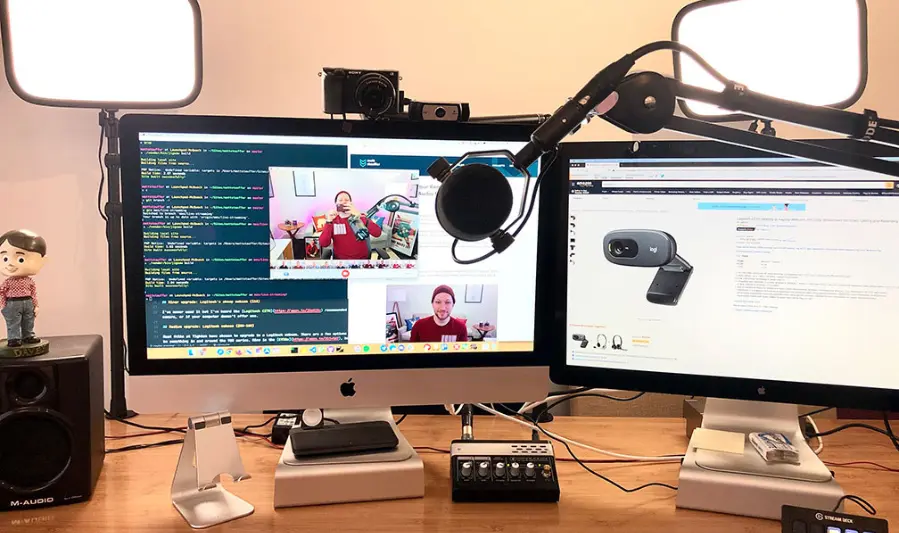
2. Using a Ring Light or Key Light
- A ring light evenly lights your face and reduces facial shadows. It’s ideal for small spaces and solo streamers.
- A key light provides directional lighting and is more flexible for multi-light setups.
Setup example:
- One key light at 45° angle (main light)
- Optional fill light on the other side (to soften shadows)
- Optional backlight/hair light behind you to add depth
Note: Make sure the light is not too bright—overexposure can flatten your image and cause detail loss.
3. Webcam Positioning and Angles
- Place your webcam at eye level for the most natural and flattering look.
- Avoid angles that are too low (under your chin) or too high (top-down).
- If you’re using a laptop webcam, consider using a stand or external camera to lift it to eye level.
Pro tip: Sit about an arm’s length away from the camera for a natural frame (shoulders to headspace).
4. Adjusting Settings in Webcam Software
Most quality webcams come with companion software that allows you to tweak:
- Brightness / contrast
- White balance
- Saturation
- Sharpness
- Zoom / framing
- Autofocus settings
Spend a few minutes manually adjusting these before you go live—auto settings often overcorrect or fluctuate during a stream.
If your webcam lacks its own software, OBS Studio or third-party tools like SplitCam or Logi Tune may help.
5. Using Virtual Backgrounds or Blur Features
- Built-in blur or background replacement features (like in Zoom, OBS, or NVIDIA Broadcast) can enhance focus on you.
- Virtual backgrounds work best with even lighting and a clear separation between you and the background.
- Avoid clutter behind you—if you don’t use blur, aim for a clean, non-distracting setup.
Tip: If possible, use a green screen or solid color wall for smoother background removal.
Final Thoughts
You don’t need expensive gear to look great on stream. With the right lighting, thoughtful positioning, and a bit of software tweaking, you can significantly enhance your webcam’s performance and create a more engaging, professional-looking stream.
Faqs:
Do I need a 4K webcam for streaming?
Not necessarily. While 4K offers superior clarity, 1080p at 30fps or 60fps is more than sufficient for most streamers, especially on platforms like Twitch and YouTube where streams are often compressed.
Is 60fps better than 30fps for streaming?
Yes, 60fps provides smoother video, which is especially noticeable in high-motion streams like gaming. However, 30fps is still acceptable for talking-head content or virtual meetings.
Can I improve my webcam quality without upgrading?
Yes. Good lighting, proper webcam placement, and adjusting settings like exposure and white balance in software can significantly enhance image quality.
Are built-in laptop webcams good enough for streaming?
In most cases, no. Built-in webcams are usually low resolution with poor low-light performance. External webcams offer much better quality and flexibility.
Can I use a webcam with OBS or other streaming software?
Absolutely. Most modern webcams are compatible with OBS, Streamlabs, Zoom, and other broadcasting or meeting software with plug-and-play functionality.
Conclusion:
Choosing the right webcam can dramatically improve the quality of your streams, content, or virtual meetings. Whether you’re a beginner on a budget or a seasoned content creator looking for 4K clarity, there are excellent options available in 2025 to fit your needs. From resolution and frame rate to low-light performance and software features, consider what matters most for your setup. With the right webcam, you can present yourself clearly, professionally, and confidently—no matter where you stream.