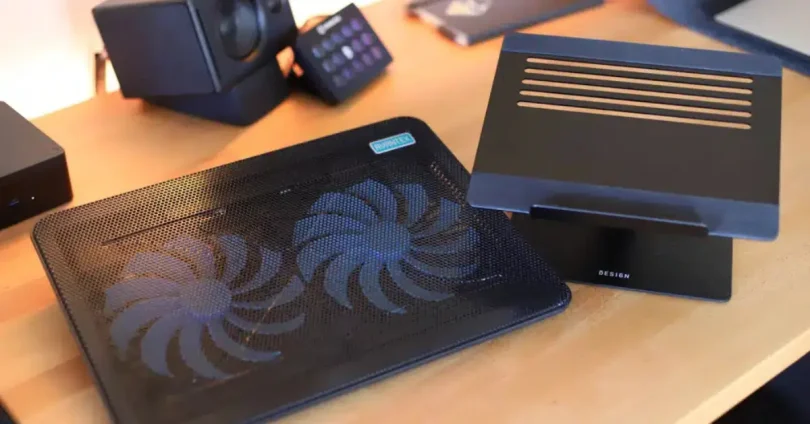

Introduction
Many laptop users struggle with two common problems: overheating and poor posture. Whether you’re working, gaming, or streaming, placing your laptop flat on a desk can lead to increased internal temperatures and uncomfortable viewing angles that strain your neck and back.
A laptop stand is a simple yet highly effective solution. It helps improve airflow to keep your device cool and elevates your screen to a more ergonomic height, reducing physical discomfort during long hours of use.
In this post, you’ll learn:
- Why overheating and posture issues matter
- The key benefits of using a laptop stand
- What features to look for
- A breakdown of top laptop stands in 2025
- Tips on setup and complementary accessories like external keyboards and cooling pads
Whether you’re a student, remote worker, gamer, or content creator, the right laptop stand can make a big difference in both comfort and performance.
Why Laptop Stands Matter

Laptop stands are more than just simple desk accessories—they’re essential tools that can significantly enhance your comfort, productivity, and overall workflow. Here’s why investing in a quality laptop stand is worth considering:
1. Ergonomic Benefits: Relief for Neck, Back, and Posture
Using a laptop flat on a desk causes you to hunch over, leading to poor posture over time. This strain can result in:
- Neck stiffness
- Upper and lower back pain
- Shoulder tension
- Long-term spinal misalignment
A laptop stand raises the screen to eye level, helping you sit upright with your spine aligned. This promotes a more natural, comfortable sitting position and helps reduce physical fatigue during extended work or gaming sessions.
2. Improved Productivity and Workspace Organization
By lifting your laptop off the desk, a stand:
- Frees up desk space for peripherals, documents, or other devices
- Allows better cable management and reduces clutter
- Supports cleaner, more focused work environments
Some stands also include built-in trays, USB hubs, or document holders, helping you keep your setup efficient and streamlined.
3. Better Viewing Angles for Dual-Screen Setups
If you use an external monitor alongside your laptop, mismatched screen heights can disrupt your workflow and cause eye or neck strain.
A laptop stand helps:
- Align your laptop screen with external monitors for seamless dual-screen viewing
- Improve visibility during video calls or presentations
- Offer a more natural side-by-side layout for multitasking
Why Use Laptop Cooling Pads

Laptops are powerful but compact machines, and with that portability often comes a drawback: heat buildup. Without sufficient airflow, laptops can overheat—leading to reduced performance, hardware stress, and discomfort during use. This is where a cooling pad comes in.
1. Prevent Overheating and Thermal Throttling
Modern laptops, especially those used for gaming, video editing, or multitasking, generate a lot of heat. Overheating can lead to thermal throttling, where your laptop slows down performance to avoid damage.
Cooling pads help by:
- Using built-in fans to improve airflow beneath your laptop
- Reducing internal temperatures by a few degrees (often enough to prevent throttling)
- Helping your laptop maintain safe operating temperatures under load
2. Maintain System Performance During Heavy Use
When your CPU or GPU overheats, your laptop may:
- Lower clock speeds
- Reduce graphical performance
- Lag or freeze intermittently
A cooling pad keeps the temperature down, allowing your system to run at its full potential for longer—ideal for:
- Gaming sessions
- Rendering or exporting videos
- Running virtual machines or large datasets
3. Extend Laptop Lifespan
Excessive heat doesn’t just affect performance—it degrades hardware over time:
- Components like the motherboard, SSD, and battery suffer from heat exposure
- Thermal wear and repeated heat cycles reduce the long-term reliability of internal parts
By keeping temperatures consistently lower, cooling pads help preserve the health of your laptop’s internal components, potentially extending its lifespan by months or even years.
Bonus Benefit: Improved Comfort
Cooling pads often angle your laptop slightly, doubling as an ergonomic aid. This makes typing more comfortable and improves airflow at the same time—especially useful for laptops with bottom-vent designs.
Conclusion:
If you regularly push your laptop with intensive tasks or notice it getting hot during use, a cooling pad is a smart, inexpensive way to improve performance, protect your hardware, and work more comfortably.
Types of Laptop Stands
Laptop stands come in a variety of designs to suit different workstyles, setups, and spaces. Understanding the types available will help you choose one that matches your needs—whether you prioritize portability, ergonomics, or connectivity.
1. Adjustable Stands
What They Are:
Adjustable laptop stands allow you to raise, tilt, or angle your laptop to a desired height or position.
Key Benefits:
- Customize height for ergonomic viewing
- Improve airflow and cooling
- Compatible with a wide range of laptop sizes
Ideal For:
Users who want flexibility in posture or regularly switch between sitting and standing desks.
2. Foldable/Portable Stands
What They Are:
Lightweight stands that fold down flat or collapse, making them easy to carry and store.
Key Benefits:
- Highly portable for travel or hot-desking
- Often made of aluminum or lightweight plastic
- Quick setup and takedown
Ideal For:
Students, digital nomads, or professionals who work in multiple locations and need a compact stand for mobility.
3. Docking Stands with USB Hubs
What They Are:
These stands integrate docking station features like USB ports, HDMI, SD card readers, and sometimes Ethernet ports.
Key Benefits:
- One cable connection to multiple devices
- Reduces cable clutter
- Great for dual monitors, external drives, and peripherals
Ideal For:
Remote workers, content creators, and tech-heavy users with many connected devices who want a clean, all-in-one desk setup.
4. Vertical Stands for Closed-Lid Setups
What They Are:
Vertical stands hold your laptop upright (closed) to save desk space—commonly used in clamshell (closed-lid) mode with an external monitor.
Key Benefits:
- Saves desk space
- Keeps your setup clean and organized
- Allows for better cable management
Ideal For:
Users with a dedicated monitor and external keyboard/mouse setup—especially in home offices or studio environments.
you my also like to read these posts:
Affordable Headphones with Mic: Best Picks Under $50
The Ultimate External Hard Drives Buying Guide
Ultimate Guide to the Best Webcams for Streaming in 2025
Boost Performance: Laptop Stands & Cooling Pads
Types of Laptop Cooling Pads
Not all laptop cooling pads are created equal. From basic models with one fan to advanced pads with RGB lighting and multiple fan zones, the right choice depends on your laptop size, usage, and performance needs. Here’s a breakdown of the most common types:
1. Single-Fan vs Multi-Fan Designs
Single-Fan Cooling Pads
- Feature one large central fan (usually 120mm–200mm).
- Quieter operation and decent airflow for general use.
- Typically better for light gaming, office tasks, or smaller laptops.
Pros:
- Low noise
- Energy-efficient
- Often more compact
Cons:
- Less airflow coverage
- Limited cooling for laptops with multiple heat zones
Multi-Fan Cooling Pads
- Use 2 to 6 smaller fans positioned to cover more surface area.
- Provide more focused and consistent airflow across the laptop base.
- Ideal for gaming laptops or workstations with high heat output.
Pros:
- Better overall cooling performance
- Often adjustable fan zones
- Supports heavier workloads
Cons:
- Slightly louder
- May consume more power via USB
2. Adjustable Fan Speed Models
Cooling pads with adjustable fan speed let you fine-tune performance vs noise levels based on your workload.
Benefits:
- Lower speeds for quiet tasks (browsing, typing)
- Higher speeds for gaming or video editing
- Better control over power consumption and heat
Ideal For:
Users who want a balance between noise and performance or who use their laptops for both light and intensive tasks.
3. RGB Cooling Pads
Designed with customizable RGB lighting, these pads are aimed at gamers or anyone wanting a more visually immersive setup.
Features May Include:
- Multiple RGB zones or modes
- Syncing options with other RGB devices
- Added visual flair for streaming or nighttime use
Pros:
- Aesthetic appeal
- Often combined with high airflow and multi-fan layouts
Cons:
- Typically more expensive
- Requires extra power (some need dual USB ports or external power)
4. Pads for Specific Laptop Sizes (15″, 17″, etc.)
Cooling pads come in different sizes to match various laptop dimensions:
- 15″ Cooling Pads: More compact, ideal for smaller laptops or ultrabooks.
- 17″+ Cooling Pads: Wider base and fan coverage to support gaming laptops or large workstations.
- Some models are adjustable or have spring-loaded arms to accommodate multiple sizes.
Why Size Matters:
- Ensures airflow is directed to the right heat zones
- Provides better stability and support
- Prevents the laptop from overhanging or slipping
Summary Table
| Type | Best For | Key Benefit |
|---|---|---|
| Single-Fan | Everyday tasks, office use | Quiet and efficient cooling |
| Multi-Fan | Gaming, high-performance laptops | Stronger and more even airflow |
| Adjustable Fan Speed | Mixed workloads | Customizable noise/performance |
| RGB Cooling Pads | Gamers, streamers | Aesthetic appeal + strong cooling |
| Size-Specific Pads | 15″, 17″+ laptops | Tailored fit and optimized airflow |
Choosing the right cooling pad ensures your laptop stays cool under pressure—whether you’re editing video, gaming for hours, or just want quieter, smoother performance. Let me know if you’d like top model recommendations based on your laptop size or needs.
Top 5 Laptop Stands of 2025
1. Nexstand K2
- Description: Lightweight, foldable stand offering eight height adjustments—ultra-portable at just ~234g.
- Pros: Highly adjustable, supports 11–17″ laptops, excellent ergonomics on a budget
- Cons: Made of nylon—may feel less premium, but still sturdy.
- Ideal For: Remote workers, digital nomads, students needing ergonomic flexibility and portability.
2. Roost V3
- Description: Ultralight and compact—a standout for travelers at just ~165g with adjustable height up to ~11 inches.
- Pros: Fantastic portability, solid build despite small size.
- Cons: Higher price; limited compatibility with thicker laptops.
- Ideal For: Frequent travelers or anyone needing a compact, reliable stand on the go.
3. MOFT Z Invisible Laptop Stand
- Description: Ultra-thin, fold-flat stand with multiple angled positions (15°–25°); attaches via adhesive.
- Pros: Sleek, minimalist, highly portable.
- Cons: Durability concerns around the adhesive; limited angle range.
- Ideal For: Minimalists or professionals needing a no-fuss, travel-friendly stand.
4. Rain Design mStand
- Description: Solid aluminum stand with a fixed 6-inch height and a clean, premium design.
- Pros: Stable, elegant aesthetics, includes cable management and space beneath for peripherals.
- Cons: Not adjustable or foldable—better suited for stationary setups
- Ideal For: Home or office users valuing design and desktop ergonomics over portability.
5. Lamicall Laptop Stand
- Description: Foldable aluminum stand offering stability, wide compatibility (10–17″), and large rubber pads.
- Pros: Portable yet durable; great adjustability; widely recommended by experts.
- Cons: Hinges are stiff and require two hands to adjust.
- Ideal For: Versatile users who need a balance of portability and ergonomic optimization.
Quick Comparison Table
| Stand | Best For | Pros | Cons |
|---|---|---|---|
| Nexstand K2 | On-the-go ergonomics | Lightweight, adjustable, affectionate price | Feels less premium |
| Roost V3 | Frequent travelers | Ultralight, compact, strong | Pricey, not for thick laptops |
| MOFT Z | Minimalist portability | Ultra-thin, discreet, multi-angle | Adhesive durability concerns |
| Rain Design mStand | Home/office elegance | Premium, stable, cable-ready | Not portable or adjustable |
| Lamicall Stand | Everyday ergonomic use | Sturdy, foldable, widely compatible | Stiff hinges |
Summary
- For travel & flexibility: Go with Roost V3 or Nexstand K2.
- For minimalist portability: MOFT Z shines with its sleek design.
- For stable, stylish desk setup: Choose Rain Design mStand.
- For a versatile, portable daily stand: Lamicall strikes a great balance.
Let me know if you’d like tailored recommendations based on your specific use—home setup, travel, dual-monitor work, etc.!
1. Kootek Cooler Pad Chill Mat 5
- Highlights: Five fans (4 × 70 mm + 1 central 120 mm), six adjustable height angles via a ratchet mechanism, USB 2.0 hub, fits 12–17″ laptops.
- Cooling & Noise: Delivers excellent airflow and remains relatively quiet despite multiple fans.
- Durability & Design: Mainly plastic construction—adequate for everyday use but less premium-feeling.
- Best For: Users looking for versatile performance and adjustability at a mid-range price.
2. Havit HV‑F2056
- Highlights: Slim, lightweight design (weighing just ~550 g), metal mesh surface, triple 110 mm fans, dual height settings, USB pass-through.
- Cooling & Noise: Quiet and effective for most use cases, though not ideal for intense gaming loads.
- Durability & Design: Portable and sturdy—great for travel, students, and standard office use.
- Best For: Budget-minded users and frequent travelers seeking reliable, low-noise cooling.
3. Thermaltake Massive 20 RGB
- Highlights: Powerful 200 mm fan, customizable RGB lighting, adjustable tilt levels. Popular among gamers and creators.
- Cooling & Noise: Strong cooling performance with minimal noise.
- Durability & Design: Robust metal mesh build with a premium feel.
- Best For: High-performance laptops where both cooling and aesthetics matter.
4. KLIM Wind
- Highlights: Four high-speed fans (approx. 1200 RPM), lightweight and durable, supports laptops up to 19″, backed by a 5-year warranty.
- Cooling & Noise: Delivers excellent airflow and noticeable cooling benefits
- Durability & Design: Solid build quality and long warranty enhance longevity.
- Best For: Gamers and power users who need consistent cooling and reliability.
5. TopMate C5
- Highlights: Five high-speed fans (~2500 RPM), LCD display for fan control, LED lighting, ergonomic design.
- Cooling & Noise: High airflow power; overall noise level not extensively detailed but implied to be manageable.
- Durability & Design: Functional and sturdy with useful adjustability and screen.
- Best For: Users needing powerful, customizable cooling suited to gaming or demanding tasks.
Quick Comparison Table
| Model | Cooling Power | Noise Level | Build Quality | Best Use Case |
|---|---|---|---|---|
| Kootek Chill Mat 5 | Excellent | Moderate | Average | Versatile cooling & adjustability |
| Havit HV‑F2056 | Good | Very Quiet | Good, Portable | Budget travel/office use |
| Thermaltake Massive 20 RGB | Excellent | Low | High, Stylish | Gaming setups |
| KLIM Wind | Excellent | Moderate | Premium, Durable | Long-term gamers & heavy users |
| TopMate C5 | Excellent | — | Functional, Sturdy | Custom, high-performance cooling |
Community Insights
- High-tier models like Llano and IETS GT600 offer superior cooling performance—often highlighted by users for dramatic temperature drops.
- These premium coolers frequently outperform budgets but tend to be louder and bulkier.
Final Thoughts
- Best overall: Kootek Chill Mat 5 for adjustable, reliable performance.
- Best budget: Havit HV-F2056 for quiet, portable use.
- Best for gaming/aesthetics: Thermaltake Massive 20 RGB or KLIM Wind if you want power with visuals.
- Best feature-rich choice: TopMate C5 with its control panel and design.
Let me know if you’d like tailored picks for specific laptop models or portability needs!
Key Factors to Consider Before Buying a Laptop Cooling Pad
1. Laptop Size Compatibility
- Why it matters: A cooling pad must match your laptop’s dimensions to provide effective cooling.
- What to check: Ensure the cooling pad supports your laptop’s screen size (e.g., 13″, 15″, 17″) and weight. Most pads are designed for laptops between 12–17 inches.
- Tip: For larger gaming laptops, consider pads with reinforced structures to support the extra weight.
2. Build Quality and Material
- Why it matters: The material affects durability, heat dissipation, and overall stability.
- Materials:
- Metal (Aluminum): Offers better heat dissipation and durability.
- Plastic: Lighter and more portable but may not dissipate heat as efficiently.
- Tip: Choose a cooling pad with a sturdy construction to ensure longevity and effective cooling.
3. Adjustability and Stability
- Why it matters: Proper ergonomics can reduce strain during extended use.
- Features to look for:
- Height Adjustment: Allows you to set the laptop at a comfortable viewing angle.
- Non-slip Surface: Prevents the laptop from sliding during use.
- Tip: Opt for cooling pads with adjustable height settings to enhance comfort.
4. Portability and Weight
- Why it matters: If you travel frequently, a lightweight and compact cooling pad is essential.
- Considerations:
- Weight: Lighter pads are easier to carry.
- Foldability: Some pads can be folded for easier storage.
- Tip: Choose a cooling pad that balances portability with adequate cooling performance.
5. Fan Power and Noise Level
- Why it matters: Effective cooling is crucial, but excessive noise can be distracting.
- Fan Configuration:
- Single Large Fan: Quieter operation with uniform airflow.
- Multiple Smaller Fans: Targeted cooling but may produce more noise.
- Noise Levels: Look for pads with noise levels below 25 dB for a quieter experience.
- Tip: Consider your usage environment and choose a cooling pad with an appropriate balance between cooling power and noise.
6. USB Pass-Through Support
- Why it matters: Laptops have limited USB ports, and a cooling pad may occupy one.
- Features to look for:
- USB Pass-Through Ports: Allows you to connect other devices without losing a USB port.
- Tip: If your laptop has limited USB ports, choose a cooling pad with pass-through support to maintain connectivity.
Additional Considerations
- Cooling Performance: Look for pads with higher airflow (measured in CFM) for better cooling.
- Ergonomics: Pads with adjustable angles can improve typing posture and reduce strain.
- Aesthetics: Some pads come with RGB lighting or sleek designs to match your setup.
- Budget: Prices vary; set a budget that aligns with your needs and features desired.
Tips for Proper Use
1. How to Set Up Your Laptop Stand Ergonomically
- Position the screen at eye level: Your laptop screen should be at or slightly below eye height to avoid neck strain.
- Maintain a neutral wrist position: When typing, your wrists should be straight, not bent up or down.
- Use an external keyboard and mouse: This allows your hands to stay in a comfortable position while your laptop is elevated.
- Adjust the angle for comfort: Use the stand’s height or tilt adjustment to reduce glare and improve viewing angle.
- Keep a good sitting posture: Sit with your back straight, feet flat on the floor, and elbows at roughly a 90-degree angle.
2. How to Clean and Maintain Cooling Pads
- Regular dust removal: Use compressed air or a soft brush to clean dust off fans and vents to maintain airflow.
- Wipe down surfaces: Use a slightly damp cloth to clean the pad’s surface, avoiding any water entering the electronics.
- Check for loose connections: Periodically inspect USB cables and ports for any wear or damage.
- Avoid blocking vents: Make sure nothing obstructs the airflow path on your cooling pad.
- Store properly: When not in use, keep your cooling pad in a dry, dust-free environment.
3. When to Use a Stand vs Cooling Pad — Or Both
- Use a laptop stand when:
- You want to improve ergonomics and reduce neck or wrist strain.
- Your laptop tends to run cool enough on its own.
- You use an external keyboard and mouse setup.
- Use a cooling pad when:
- Your laptop overheats during heavy use like gaming, video editing, or multitasking.
- You notice thermal throttling or fan noise spikes.
- You want to extend your laptop’s lifespan by maintaining safe operating temperatures.
- Use both when:
- You want the ergonomic benefits of a stand and active cooling.
- Your laptop’s heat output is significant, but you also want to maintain a comfortable viewing and typing posture.
- You need maximum performance during extended heavy workloads.
Faqs:
Can a cooling pad really help reduce my laptop’s temperature?
Yes, cooling pads with built-in fans improve airflow and help dissipate heat, reducing the overall temperature and preventing overheating.
Are laptop stands beneficial for gaming?
Absolutely! Laptop stands improve airflow and ergonomics, which can enhance comfort during long gaming sessions and help keep your laptop cooler.
What is the ideal height for a laptop stand?
The ideal height is generally at or just below eye level to promote good posture and reduce neck and back strain.
Can I use a cooling pad and laptop stand together?
Yes, using both together can maximize cooling and ergonomic benefits, improving performance and comfort.
Are laptop stands and cooling pads compatible with all laptop models?
Most stands and cooling pads are designed to accommodate a wide range of laptop sizes and models, but it’s best to check size compatibility before purchasing.
Conclusion:
Investing in a quality laptop stand and cooling pad can significantly improve your comfort, productivity, and your laptop’s performance. By promoting better posture and preventing overheating, these accessories help extend the life of your device while making long hours of work or gaming more enjoyable. Choose the right combination based on your needs and setup to get the most out of your laptop in 2025.