
Introduction
In today’s digital world, cloud storage has become an essential tool for individuals and businesses alike. But what exactly is cloud storage? Simply put, it is a service that allows you to save data—such as documents, photos, videos, and backups—on remote servers accessed via the internet, rather than relying solely on your device’s local storage.
As we move further into 2025, cloud storage’s importance continues to grow. With the explosion of data from work, entertainment, and smart devices, having reliable, scalable, and secure storage solutions is more critical than ever. Cloud storage offers flexibility, easy access from anywhere, and collaborative features that local drives simply can’t match.
This blog post will cover everything you need to know about cloud storage in 2025: what it is, why it matters, the different types available, key features to consider, top providers, and tips on choosing the best service to suit your needs.
How Cloud Storage Works
Basics of Cloud Infrastructure
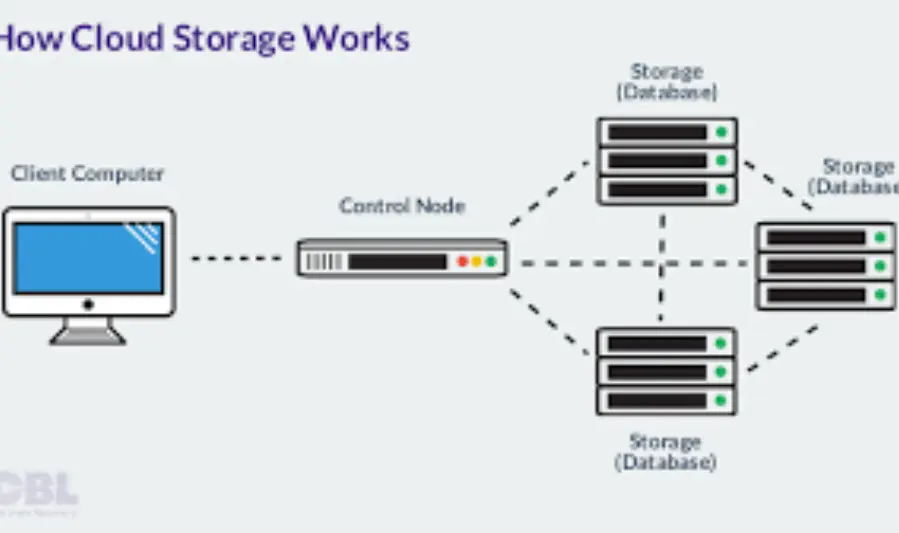
Cloud storage relies on a network of remote servers hosted in data centers around the world. Instead of saving files locally on your computer or phone, your data is uploaded via the internet to these servers. The cloud provider manages the hardware, maintenance, and security, allowing you to access your files anytime, anywhere, from any device with an internet connection.
When you save a file to the cloud, it’s usually duplicated across multiple servers in different locations (a process called redundancy) to ensure your data remains safe even if one server fails. Data is encrypted during transfer and while stored to protect your privacy and security.
Types of Cloud Storage
- Public Cloud Storage
- Provided by third-party companies (like Google Drive, Dropbox, Amazon S3).
- Resources and storage infrastructure are shared among multiple users or organizations.
- Benefits: Cost-effective, highly scalable, and easy to access.
- Common use: Personal file storage, startups, small to medium businesses.
- Private Cloud Storage
- Dedicated infrastructure used exclusively by one organization.
- Can be hosted on-premises or by a third-party provider.
- Benefits: Greater control, security, and customization.
- Common use: Large enterprises, sensitive data handling, industries with strict compliance requirements.
- Hybrid Cloud Storage
- A combination of public and private clouds.
- Enables organizations to keep sensitive data in private clouds while using public clouds for less critical data and scalability.
- Benefits: Flexibility, cost optimization, and enhanced security.
- Common use: Enterprises with mixed data storage needs.
Data Centers and Servers Explained
Cloud storage depends on vast data centers filled with powerful servers. These facilities are designed to operate 24/7 with robust security, cooling systems, and backup power to prevent downtime.
- Servers: Specialized computers that store and manage data. When you upload or download files, you’re interacting with these servers remotely.
- Redundancy: Multiple servers store copies of your data to prevent loss.
- Scalability: Data centers can quickly add more servers to meet growing storage demands.
- Security Measures: Data centers use firewalls, encryption, physical security, and compliance certifications to safeguard your information.
Benefits of Using Cloud Storage
1. Accessibility and Mobility
Cloud storage allows you to access your data anytime, anywhere, from any device connected to the internet. Whether you’re at home, in the office, or on the go, you can retrieve files, collaborate, and manage data with ease. This mobility is particularly useful for remote workers, traveling professionals, or anyone who needs to stay connected to their files without being tethered to a single device or location.
- Example: You can start editing a document on your desktop, continue working on your phone during your commute, and finish it on a laptop while traveling.
2. Cost-Effectiveness Compared to Physical Storage
Storing data on physical devices like external hard drives, USB drives, or local servers can be costly due to hardware expenses, maintenance, and space requirements. With cloud storage, you only pay for the amount of space you use, which is often far more affordable, especially for small businesses and individuals.
- Lower Initial Costs: No need to buy expensive hardware.
- No Maintenance Fees: Cloud providers handle the upkeep, saving you time and money.
- Flexible Plans: Many cloud storage services offer free tiers with limited space, and premium plans grow with your needs.
3. Scalability and Flexibility for Different Needs
Cloud storage is incredibly scalable. As your storage needs grow, you can easily upgrade your plan to accommodate more data without needing to purchase new hardware or worry about physical space. Whether you’re a freelancer with a few GB of data or an enterprise with terabytes, the cloud can adapt to your requirements.
- Instant Expansion: Need more space for photos, videos, or files? Just upgrade your plan in a few clicks.
- Pay-as-You-Go: Cloud storage providers typically charge based on the storage you use, making it cost-efficient for both small and large-scale needs.
4. Collaboration and File Sharing Features
Cloud storage allows seamless collaboration, making it easier for teams to work together in real-time. You can share documents, spreadsheets, images, and more with colleagues or clients, control access permissions, and track changes to files. This feature is invaluable for remote teams, freelancers, and anyone who needs to collaborate on shared projects.
- Real-time Editing: Platforms like Google Drive and Microsoft OneDrive let multiple people edit documents at the same time.
- Version Control: Most cloud services maintain version history, allowing you to roll back to earlier versions if necessary.
- Easy Sharing: With a few clicks, you can share large files via links, saving the hassle of email attachments.
5. Enhanced Security and Disaster Recovery
Security is a top priority for most cloud providers. Your data is typically encrypted during transmission and storage, protecting it from unauthorized access. Additionally, cloud storage services offer robust disaster recovery solutions, so even if your device is lost, damaged, or stolen, your files remain safe in the cloud.
- Encryption: Data is encrypted both in transit and at rest, keeping your information safe from hackers.
- Automated Backups: Many cloud services offer automatic backups to ensure you don’t lose your important files in case of device failure.
- Redundancy: Cloud providers use multiple servers and data centers to ensure that if one location fails, your data is still accessible from another.
These benefits demonstrate why cloud storage has become an essential part of personal and business data management in 2025. The combination of easy access, cost savings, scalability, collaboration tools, and robust security make it the go-to solution for modern storage needs.
Popular Cloud Storage Providers in 2025
1. Google Drive
- Features:
- 15 GB of free storage with the option to upgrade to 100 GB or more through Google One.
- Seamless integration with Google Workspace (Docs, Sheets, Slides, etc.).
- Advanced sharing and collaboration features, including real-time editing and commenting.
- Offline access via the Google Drive app.
- Integration with third-party apps (Slack, Zoom, etc.).
- Best Use Cases:
- Individuals and teams working with Google’s suite of productivity tools.
- Collaboration and real-time editing for remote teams.
- Backup and storage for photos, videos, and personal files.
- Advantages:
- Generous free storage.
- Excellent collaboration tools with Google Workspace.
- Cross-platform support (Windows, macOS, iOS, Android).
- Ideal for:
Personal users, students, small businesses, and remote teams that use Google Workspace regularly.
2. Dropbox
- Features:
- 2 GB of free storage with paid plans starting at 2 TB.
- Strong file sharing and syncing capabilities, even for large files.
- Advanced collaboration tools, including Dropbox Paper for document collaboration.
- Integration with a variety of third-party apps like Slack, Zoom, and Adobe Acrobat.
- Best Use Cases:
- Businesses and teams looking for seamless file synchronization and sharing.
- Creative professionals who need to share large files (photos, videos, design assets).
- Version control and file management for teams working on multiple projects.
- Advantages:
- Smart Sync for saving local disk space.
- Great for syncing across multiple devices.
- Comprehensive file versioning and backup.
- Ideal for:
Professionals, creative teams, and businesses that need robust file-sharing features and easy integration with other tools.
3. Microsoft OneDrive
- Features:
- 5 GB of free storage with options for upgrading through Microsoft 365 subscriptions (1 TB or more).
- Seamless integration with Microsoft Office tools (Word, Excel, PowerPoint).
- Advanced collaboration and file sharing options for both business and personal users.
- Personal Vault for secure file storage with two-factor authentication.
- Automatic photo and video backup on mobile devices.
- Best Use Cases:
- Individuals and businesses that use Microsoft Office tools regularly.
- Work-from-home setups needing document collaboration and backup solutions.
- Small businesses that need to combine file storage with Office 365 apps.
- Advantages:
- Deep integration with Microsoft Office apps.
- Cost-effective for users with Microsoft 365 subscriptions.
- Excellent security and data protection, including personal vaults for sensitive documents.
- Ideal for:
Microsoft Office users, small businesses, and individuals who want integrated cloud storage with their productivity suite.
4. Amazon S3 (Simple Storage Service)
- Features:
- Scalable storage that grows with your needs—ideal for large amounts of unstructured data (media files, backups, archives).
- Highly flexible with options for data retrieval, lifecycle management, and object storage.
- High availability and durability, with redundancy across multiple data centers.
- Robust security features, including encryption and access management.
- Best Use Cases:
- Enterprises and developers requiring reliable, large-scale cloud storage solutions.
- Media companies storing and distributing large video files or backups.
- Backup and archival solutions for companies with large datasets.
- Advantages:
- Scalable and highly flexible.
- Pay-as-you-go pricing model.
- Extensive security features for enterprise-level needs.
- Ideal for:
Enterprises, developers, and businesses needing large-scale, reliable, and secure cloud storage for large datasets, media files, and backups.
5. Apple iCloud
- Features:
- 5 GB of free storage with options to upgrade to 50 GB, 200 GB, or 2 TB.
- Seamless integration across Apple devices (iPhone, iPad, Mac).
- Automatic backup of photos, documents, and app data across all Apple devices.
- iCloud Drive for file storage and sharing, with support for third-party apps.
- Family sharing allows up to six people to share storage plans.
- Best Use Cases:
- Apple ecosystem users who want seamless file sync and backup across devices.
- Personal use for backing up photos, documents, and app data.
- Family sharing and syncing of data between multiple Apple devices.
- Advantages:
- Tight integration with Apple devices.
- Simplified backup and restore across Apple devices.
- Smooth file sharing and collaboration through iCloud Drive.
- Ideal for:
Apple users who want integrated storage solutions across their iPhone, Mac, and other Apple devices.
Conclusion
Each cloud storage provider offers unique benefits suited to different needs. Whether you’re a casual user looking for personal backup, a business needing collaborative tools, or an enterprise requiring scalable storage, there’s a cloud solution that fits your requirements in 2025.
you may also like to read these posts:
The Ultimate External Hard Drives Buying Guide
Ultimate Guide to the Best Webcams for Streaming in 2025
Boost Performance: Laptop Stands & Cooling Pads
Affordable Cloud Storage Solutions for Everyone
Choosing the Right Cloud Storage Solution
1. Assessing Your Storage Needs
Before picking a cloud storage service, it’s essential to evaluate how much data you need to store and the type of files you’ll be handling.
- Personal Use: If you’re mainly storing photos, documents, and some media, a free or entry-level paid plan (around 50GB to 1TB) should suffice.
- Small Businesses: For collaborative work and daily file management, look for services with more storage capacity (2TB+), seamless sharing, and access control.
- Enterprise or Large-Scale Storage Needs: If you’re handling large amounts of data (e.g., media files, backups, archives), you’ll need a scalable solution like Amazon S3 or Google Cloud Storage.
2. Compatibility with Devices and Operating Systems
Make sure the cloud storage solution works seamlessly across all the devices and platforms you use. This is especially important if you rely on multiple devices or platforms (Windows, macOS, iOS, Android).
- Google Drive and Dropbox support both desktop and mobile platforms (Windows, macOS, iOS, Android), making them ideal for users on different devices.
- Apple iCloud works best if you are deeply integrated into the Apple ecosystem.
- Microsoft OneDrive integrates well with Windows, especially for Microsoft 365 users, but also works cross-platform on macOS, iOS, and Android.
3. Collaboration Tools and Sharing Options
If collaboration is key to your use case (especially for businesses, remote teams, or creative projects), pay attention to the cloud storage’s collaboration features.
- Google Drive and Dropbox offer real-time document editing, version control, and robust file-sharing options. Google Drive’s integration with Google Workspace (Docs, Sheets, Slides) is especially useful for teams.
- Microsoft OneDrive is a great choice for businesses already using Microsoft Office 365, as it enables real-time co-authoring in Word, Excel, and PowerPoint.
- Apple iCloud is more oriented towards personal use, but it also supports file-sharing via iCloud Drive and collaborative work with Pages, Numbers, and Keynote.
4. Security Features and Compliance Standards
Data security is crucial, especially for businesses handling sensitive or regulated information. Look for cloud services with robust encryption, authentication, and compliance features.
- Encryption: Ensure the service encrypts data both during transit and at rest. Services like Google Drive, Dropbox, and OneDrive provide strong encryption.
- Two-Factor Authentication (2FA): Choose services that offer 2FA to add an extra layer of security.
- Compliance Standards: If you’re in an industry with strict regulations (e.g., healthcare, finance), check if the provider meets standards like GDPR, HIPAA, or ISO 27001. Amazon S3 and Google Cloud are particularly well-suited for enterprise-level compliance.
5. Pricing Models and Subscription Plans
Pricing should align with your storage needs, the number of users, and the features you require. Cloud storage services typically offer a range of pricing models.
- Free Plans: Many services, such as Google Drive (15GB) and Apple iCloud (5GB), offer free plans with limited storage. These are often sufficient for personal use or basic backups.
- Entry-Level Paid Plans: For individual users or small businesses, paid plans typically range from $1–$10/month for 100GB–1TB of storage. Services like OneDrive and Dropbox are popular choices here.
- Business and Enterprise Plans: If you need 2TB+, unlimited storage, or more advanced business features like custom branding, administrative controls, and team management, consider enterprise-level plans, which usually start at $10–$20 per user/month.
- Microsoft 365 Business includes 1TB of storage per user, plus access to Office apps.
- Amazon S3 offers pay-as-you-go pricing, which is suitable for large enterprises or businesses needing flexible, scalable storage.
Key Pricing Considerations:
- Free Plans: Great for light users, but consider how quickly you’ll exceed the free storage limit.
- Subscription Tiers: If you expect your storage needs to grow, choose a service that allows easy upgrades or flexible plans.
- Family and Group Plans: Services like Google One and Apple iCloud allow multiple users on a single plan at a discounted rate, which can be ideal for families or small teams.
Conclusion
Choosing the right cloud storage solution comes down to understanding your storage needs, ensuring device compatibility, evaluating collaboration tools, prioritizing security, and selecting a pricing plan that fits your budget.
- For personal use, services like Google Drive, Apple iCloud, and Microsoft OneDrive are reliable and affordable.
- For teams and businesses, Dropbox and Google Drive excel at collaboration, while Microsoft OneDrive and Amazon S3 offer enterprise-grade options with robust security and compliance features.
By considering these factors, you can make an informed decision and select the cloud storage service that best fits your requirements in 2025.
Cloud Storage Security and Privacy in 2025
When it comes to storing data in the cloud, security and privacy should be top priorities. While cloud storage providers have advanced security measures in place, users also need to take responsibility for safeguarding their data. Here’s a comprehensive look at cloud storage security and privacy:
1. Encryption Methods: At Rest and In Transit
Encryption at Rest
- What it is: Encryption at rest refers to data being encrypted when stored on a cloud provider’s servers. This means that even if someone gains unauthorized access to the storage infrastructure, the data remains unreadable without the decryption key.
- Why it matters: It protects your data from being accessed by hackers, even if the physical servers are compromised.
- Common Methods:
- AES-256 (Advanced Encryption Standard): This is the industry standard for encrypting data at rest. It’s commonly used by providers like Google Drive, OneDrive, Dropbox, and Amazon S3.
- End-to-End Encryption (E2EE): Some providers offer end-to-end encryption, where data is encrypted before leaving your device and only decrypted on the receiving end. This ensures that the cloud provider itself cannot access the content.
Encryption in Transit
- What it is: Data is encrypted while being transferred between your device and the cloud storage provider’s servers.
- Why it matters: It ensures that your data is secure during transmission and prevents interception by malicious third parties (e.g., hackers on public Wi-Fi networks).
- Common Methods:
- TLS (Transport Layer Security): TLS is the protocol most commonly used to secure data in transit. Services like Dropbox, Google Drive, iCloud, and OneDrive use TLS to protect data from eavesdropping or tampering during upload and download.
2. Authentication and Access Controls
Two-Factor Authentication (2FA)
- What it is: 2FA adds an extra layer of security by requiring two forms of identification: something you know (password) and something you have (a code sent to your phone or email).
- Why it matters: It prevents unauthorized access to your account, even if your password is compromised.
- Available on: Google Drive, Dropbox, OneDrive, and other major providers support 2FA for added security.
Access Controls and Permissions
- What it is: Access control features allow you to define who can view, edit, or share specific files and folders. This is essential for collaboration and ensuring that only authorized people can access sensitive information.
- Why it matters: Fine-grained access control ensures that data is only accessible by people who need it, preventing unauthorized sharing or data leaks.
- Features to look for:
- Granular sharing permissions (e.g., read-only or full access).
- Password-protected links for shared files.
- Expiration dates on shared links for added security.
Role-Based Access Control (RBAC)
- What it is: RBAC allows businesses to assign permissions based on roles within the organization. This ensures that employees can only access data relevant to their role.
- Why it matters: It’s vital for businesses with multiple users to limit access to sensitive data based on roles (e.g., managers might have more access than junior staff).
3. Data Privacy Policies and Legal Considerations
Data Privacy Policies
- What it is: Cloud providers should have clear data privacy policies outlining how your data is collected, stored, and shared, as well as how long it is retained.
- Why it matters: It ensures that your data is handled ethically and transparently. If privacy matters to you, you should review the provider’s privacy policy to understand how they handle your personal data.
- Key things to look for:
- Data ownership: Most services claim that users own their data, but it’s essential to confirm that the provider does not claim rights over your data.
- Data retention: Understand how long your data will be stored and how it’s deleted when you stop using the service.
- Third-party sharing: Ensure the provider doesn’t share your data with third parties without your consent, except as required by law.
Legal Compliance and Regulations
- What it is: Providers must comply with various global data protection regulations, such as:
- GDPR (General Data Protection Regulation): A regulation in the EU that sets guidelines for data protection and privacy.
- CCPA (California Consumer Privacy Act): A California-specific regulation that gives consumers more control over their personal data.
- HIPAA (Health Insurance Portability and Accountability Act): A U.S. law that provides data privacy and security provisions for medical data.
- Why it matters: Businesses and individuals must ensure their cloud provider complies with relevant regulations to protect their data’s privacy.
Data Sovereignty
- What it is: Data sovereignty refers to where your data is stored geographically. Different countries have different laws governing data privacy and security.
- Why it matters: You may prefer or need to store your data in specific regions or countries to comply with local laws or avoid excessive government surveillance.
- Example: If you are based in the EU, using a provider that complies with GDPR is essential for legal and privacy reasons.
4. Best Practices for Users to Maintain Security
Use Strong, Unique Passwords
- Why it matters: Strong passwords are your first line of defense. Ensure your password is at least 12 characters long and includes a mix of letters, numbers, and symbols.
- Tip: Use a password manager to keep track of unique passwords for different cloud services.
Enable Two-Factor Authentication (2FA)
- Why it matters: Adding 2FA makes it much harder for hackers to gain access to your account, even if they have your password.
- Tip: Enable 2FA on all your cloud storage accounts and use an authenticator app for more security than SMS-based 2FA.
Limit Shared Links and Set Expiration Dates
- Why it matters: Only share files with people who need them. Set expiration dates for shared links to prevent long-term access.
- Tip: Regularly review shared files and revoke access when it’s no longer needed.
Regularly Back Up Your Data
- Why it matters: Cloud storage is generally reliable, but accidents happen. Always have a secondary backup solution (e.g., an external hard drive or secondary cloud account).
- Tip: Use services like Google One or Backblaze for automated backups of crucial files.
Monitor Account Activity
- Why it matters: Keeping track of login and activity history helps detect unusual access patterns that could signal a security breach.
- Tip: Most cloud providers (like Google Drive and Dropbox) offer an account activity log. Regularly check it to identify any unauthorized access.
Keep Your Software Updated
- Why it matters: Security vulnerabilities in outdated software (including apps for your cloud storage) can be exploited by hackers.
- Tip: Ensure your cloud apps and operating systems are up to date with the latest security patches.
Tips to Maximize Cloud Storage Efficiency
To get the most out of your cloud storage, you need to optimize how you manage your files and take full advantage of the features available. Here are some strategies to boost your cloud storage efficiency:
1. Organizing Files and Folders Effectively
Use a Logical Folder Structure
- Why it matters: A clean and organized folder structure helps you quickly locate files and keeps your cloud storage clutter-free. It also makes sharing and collaboration easier.
- Tip: Start by creating high-level folders (e.g., “Work”, “Personal”, “Media”) and then create subfolders for categories within those groups (e.g., “Work > Reports”, “Personal > Photos”, etc.).
Use Descriptive Naming Conventions
- Why it matters: File names should clearly describe the contents. This makes it easier to search for files later and ensures that collaborators can quickly identify documents.
- Tip: Include dates, project names, and version numbers in file names for easier sorting. For example, “Marketing_Plan_2025_v2.docx”.
Leverage Tags and Color-Coding (if available)
- Why it matters: Tags and color-coding provide an additional layer of categorization for your files, making them easier to find.
- Tip: Use tags like “urgent,” “draft,” or “final version” to help prioritize files.
2. Managing Storage Quotas and Upgrades
Regularly Review Your Storage Usage
- Why it matters: Keeping track of your storage usage helps prevent exceeding your quota and ensures you’re not paying for more storage than you need.
- Tip: Most cloud storage services offer usage stats in the settings. Review these regularly to spot any unused or unnecessary files that can be deleted.
Clean Up Redundant or Old Files
- Why it matters: Over time, cloud storage accumulates redundant or outdated files that take up valuable space.
- Tip: Set a reminder to archive or delete old files at least once a quarter. Remove duplicate files or large files you no longer need.
Optimize Your Plan
- Why it matters: Cloud storage providers typically offer multiple tiers based on storage capacity. As your needs grow, you’ll need to upgrade to a higher plan.
- Tip: Compare the available storage plans regularly to ensure you’re getting the best value. If you consistently use more space, consider upgrading to a plan with more storage.
3. Using Sync and Backup Features Wisely
Sync Files Selectively
- Why it matters: Most cloud storage services offer an automatic sync feature that syncs all your files across devices. This can quickly eat up bandwidth and local storage space, especially for large files.
- Tip: Use selective sync (offered by services like Dropbox and OneDrive) to only sync specific folders or files that you need access to on your device. This minimizes local storage usage.
Use Automatic Backup for Important Files
- Why it matters: Backing up critical files ensures that you have an extra layer of protection in case of device failure or data loss.
- Tip: Set up automatic backups for your most important files, such as documents, photos, and videos. Services like Google One and Backblaze offer automated backup options.
Avoid Redundant Backups
- Why it matters: Storing multiple copies of the same file can waste space and create confusion.
- Tip: If you’re using cloud storage for backup purposes, ensure you’re not duplicating backups unnecessarily. Set up a deduplication process and only back up essential files.
4. Integrating Cloud Storage with Other Productivity Tools
Collaborate Seamlessly with Office Suites
- Why it matters: Integrating your cloud storage with productivity tools allows for real-time collaboration, version control, and easy sharing.
- Tip: Use services like Google Drive, OneDrive, or Dropbox for real-time document editing. These services allow multiple users to work on the same file simultaneously and automatically save versions to avoid data loss.
Automate File Workflows
- Why it matters: If you often work with certain files (e.g., invoices, reports), automating file organization can save you time.
- Tip: Many cloud services offer workflow automation tools (such as Zapier or IFTTT) that can help you automatically move, rename, or organize files based on specific triggers, like new uploads or file modifications.
Integrate with Communication Tools
- Why it matters: Cloud storage that integrates with communication tools (like Slack or Teams) simplifies file sharing and collaboration.
- Tip: Ensure your cloud storage is connected to the communication platforms you use. For example, if you’re using Microsoft Teams, link OneDrive to easily share files within channels. Similarly, Google Drive integrates well with Google Meet for seamless sharing during video calls.
Additional Tips for Maximizing Cloud Storage Efficiency
- Set Up Shared Folders for Teams: Use shared folders for collaboration and set clear permissions to ensure everyone has the right level of access.
- Leverage File Version History: Many cloud storage providers (e.g., Google Drive, Dropbox) keep a version history of your files. Use this feature to restore previous versions if needed, without taking up extra storage space.
- Keep an Eye on Bandwidth Usage: If you’re syncing large files regularly, it can consume significant bandwidth, particularly with limited internet connections. Adjust syncing preferences or use manual uploads/downloads for large files.
- Explore Third-Party Tools: Many cloud storage services offer integrations with third-party tools to enhance your experience. For example, use IFTTT to automate file backups or set up triggers that alert you when you’re approaching your storage limit.
By following these tips, you can not only maximize your cloud storage efficiency but also ensure that you’re organizing, securing, and utilizing your cloud space to its fullest potential. Would you like more details on any of these specific strategies or tools?
Common Challenges with Cloud Storage and How to Overcome Them
While cloud storage offers numerous benefits, it also comes with its own set of challenges. Here’s a look at some of the most common issues users face and strategies to overcome them:
1. Connectivity Issues and Offline Access
Challenge:
Cloud storage relies on an internet connection for uploading, downloading, and syncing files. Connectivity issues can cause slow upload/download speeds or even prevent access to your files when you’re offline. This can be a significant problem when you’re on the go or working in areas with spotty internet access.
How to Overcome It:
- Enable Offline Mode: Most cloud storage providers offer an offline mode that lets you access files even when you’re not connected to the internet. For example, Google Drive and OneDrive allow you to make specific files or folders available offline. Ensure you enable offline access for important files before heading into areas with weak connectivity.
- Use Cloud Storage Sync Selectively: If you’re working with large files, selective syncing can help reduce the amount of data that needs to be accessed online, allowing for quicker and easier access when offline. Only sync the folders that are essential for offline work.
- Sync When You Have a Good Connection: Schedule your most important uploads or backups during times when you have a stable internet connection, such as overnight or during off-peak hours.
- Use Backup Internet Solutions: If you often work remotely or in areas with unstable internet, consider using mobile hotspots or satellite internet solutions for reliable access.
2. Data Transfer Speeds and Bandwidth Limitations
Challenge:
Data transfer speeds can be slow depending on your internet connection, the cloud provider’s infrastructure, or the type of files you’re uploading/download. Larger files (such as videos or high-resolution images) can particularly take a long time to transfer, leading to frustration.
How to Overcome It:
- Upgrade Your Internet Plan: If slow speeds are consistently affecting your cloud storage experience, upgrading your internet service to a higher bandwidth plan could help. Look for fiber-optic or high-speed broadband services for faster upload and download rates.
- Use Data Compression: For large files, consider compressing them into formats like ZIP or RAR before uploading. This reduces the file size and speeds up transfer times, especially if your upload bandwidth is limited.
- Schedule Transfers During Off-Peak Hours: If your cloud provider allows, schedule large file uploads or downloads during off-peak times (such as late at night or early morning) when internet congestion is lower, and data transfer speeds are faster.
- Use Cloud Storage Optimized for Speed: Certain cloud providers, like Amazon S3 and Backblaze B2, are designed for speed and can offer faster transfers for larger files.
3. Vendor Lock-in and Data Migration Concerns
Challenge:
Vendor lock-in occurs when you rely on a single cloud storage provider for all your data, making it difficult or costly to migrate your files to another service if needed. This can be problematic if the provider raises prices, changes their features, or discontinues a service you rely on.
How to Overcome It:
- Diversify Your Cloud Storage Solutions: To avoid vendor lock-in, consider using multiple cloud providers for different purposes. For example, you might use Google Drive for personal storage, OneDrive for work-related files, and Dropbox for file sharing. This minimizes the risk of losing all your data if one provider fails to meet your needs.
- Use Open Formats: Choose cloud providers that allow you to export data in open, standard formats (such as PDF, CSV, or JPEG) instead of proprietary formats. This will make it easier to transfer your data to another service if necessary.
- Invest in Cloud-to-Cloud Migration Tools: If you need to move large volumes of data from one cloud provider to another, cloud migration tools like CloudFuze and MultCloud can help simplify the process by allowing you to transfer data between different cloud services without having to download and upload everything manually.
- Review Provider Policies: Before committing to a provider, review their pricing models, terms of service, and data export options. Choose providers with flexible terms and no hidden migration fees to avoid difficulties in the future.
4. Managing Costs Over Time
Challenge:
As your data grows, cloud storage costs can increase, especially if you’re using premium plans with large storage capacities or specialized features. Over time, you may find that what seemed like an affordable solution has become expensive.
How to Overcome It:
- Regularly Assess Your Storage Needs: Review your cloud storage usage periodically to ensure you’re not paying for more space than you need. Remove or archive old files that no longer require cloud storage, or move them to cheaper storage options like external hard drives.
- Switch to More Affordable Plans: Many cloud providers offer tiered pricing plans. If your usage decreases or your needs change, downgrade to a more affordable plan. Alternatively, compare prices across different providers regularly to find the best value for your current usage.
- Take Advantage of Free Storage Options: Most cloud providers offer free tiers with limited storage (e.g., Google Drive’s 15GB free plan). If your storage needs are modest, these free options may be sufficient.
- Use a Hybrid Storage Solution: Consider a hybrid approach where frequently used files are stored in the cloud for quick access, while less important files are kept on local storage or cheaper cloud options. For example, Dropbox Plus offers 2TB of storage for a reasonable price, but you can also store infrequently used data in services like Amazon Glacier or Backblaze for less cost.
- Look for Discounts and Bundles: Many providers offer discounts if you pay annually instead of monthly. Additionally, check for bundles with other services. For example, Microsoft 365 includes OneDrive storage, and Google One offers additional Google Drive space along with other perks.
Conclusion
Cloud storage has its challenges, but with the right strategies, you can mitigate many of these issues. Whether it’s improving data transfer speeds, overcoming vendor lock-in, or managing costs effectively, small changes can greatly enhance your cloud storage experience. Regularly reassess your storage needs and optimize your workflow for a smoother, more efficient cloud storage setup.
Future Trends in Cloud Storage (2025 and Beyond)
As cloud storage technology continues to evolve, new innovations are reshaping the way we store, manage, and secure our data. Here’s a look at the future trends in cloud storage that will likely dominate in the next few years:
1. Advances in AI and Automation for Data Management
What’s Happening:
Artificial Intelligence (AI) and machine learning (ML) are increasingly being integrated into cloud storage platforms to automate data management tasks, optimize storage, and improve the overall user experience. AI can analyze vast amounts of data, predict storage needs, and help automate workflows.
Key Developments:
- Automated Data Organization: AI-driven tools will be able to automatically categorize and tag files based on content, reducing the time you spend organizing your cloud storage. For example, AI could sort files into projects, teams, or topics and even flag duplicates.
- Smart File Compression and Storage Optimization: AI algorithms could optimize storage by compressing rarely used files or identifying files that can be moved to lower-cost storage, such as cold or archival storage.
- Predictive Analytics for Storage Planning: Cloud providers might use AI to analyze usage patterns and predict your future storage needs, helping you avoid over-provisioning or running out of space at crucial moments.
- Automated Backups and Security Scans: AI will help automatically back up files at optimal times, flag vulnerabilities in your stored data, and even perform real-time security scans to prevent data loss or breaches.
Impact:
These AI-powered tools will make cloud storage more intelligent, automated, and efficient—saving time and reducing manual effort, all while optimizing costs.
2. Increased Focus on Security and Compliance
What’s Happening:
With data breaches and cyberattacks becoming more common, security and compliance have become a top priority for cloud storage providers. Companies and individuals alike are demanding greater data protection and compliance with regulations like GDPR, CCPA, and HIPAA.
Key Developments:
- Zero-Trust Security Models: Cloud providers are shifting towards zero-trust security models where all access requests are treated as potential threats, regardless of their origin. This means continuous verification and monitoring of all devices and users accessing data.
- End-to-End Encryption: Expect even more widespread adoption of end-to-end encryption, ensuring that only the authorized user can decrypt and access the data. This also applies to data in transit and at rest.
- AI-Driven Threat Detection: Cloud providers will employ AI and machine learning to detect abnormal activity, flagging potential security threats in real-time before they escalate.
- Compliance as a Service: More cloud providers will offer compliance-as-a-service, simplifying the process for businesses to adhere to industry regulations by ensuring that storage practices meet legal standards.
Impact:
Increased focus on security and compliance will provide a higher level of data protection for both individuals and organizations, mitigating the risk of data breaches and legal issues related to non-compliance.
3. Growth of Hybrid and Multi-Cloud Environments
What’s Happening:
Organizations are increasingly adopting hybrid and multi-cloud strategies to avoid dependency on a single cloud provider and to enhance flexibility. A hybrid cloud is a combination of on-premises infrastructure and public/private cloud storage, while a multi-cloud strategy involves using services from multiple cloud providers.
Key Developments:
- Greater Flexibility and Cost Control: Hybrid and multi-cloud solutions allow businesses to store sensitive data on private clouds, while leveraging public clouds for less critical workloads, thus balancing performance, flexibility, and cost.
- Cloud-agnostic Tools: Cloud providers will continue to develop tools that work across multiple platforms. Cloud management platforms (CMPs) will allow users to seamlessly orchestrate and manage data across different clouds.
- Improved Interoperability: Increased emphasis on making cloud services more interoperable, with cloud-to-cloud data transfer becoming more efficient, transparent, and secure.
- Disaster Recovery and Redundancy: Hybrid and multi-cloud setups offer built-in redundancy, ensuring data availability even if one provider experiences downtime or issues.
Impact:
The move to hybrid and multi-cloud environments will improve flexibility, reduce reliance on any one provider, and enhance disaster recovery capabilities. This trend is also empowering companies to optimize for cost, compliance, and performance based on specific workloads.
4. Edge Computing and Its Impact on Cloud Storage
What’s Happening:
Edge computing refers to processing data closer to its source, such as at IoT devices or local servers, rather than relying solely on centralized cloud data centers. As more IoT devices and real-time data generation increase, edge computing will reshape how data is stored, processed, and transferred.
Key Developments:
- Reduced Latency: By storing and processing data at the edge of the network (closer to the data source), you can minimize latency and improve performance for applications that require real-time data processing, such as autonomous vehicles, smart cities, and industrial automation.
- Distributed Data Storage: Data generated at the edge will no longer have to be sent to central cloud servers for processing, leading to the rise of distributed storage systems where data is stored at various edge locations, enhancing speed and access.
- Seamless Integration with the Cloud: Edge computing will seamlessly integrate with cloud storage solutions. For example, temporary or high-frequency data might be processed at the edge, while less time-sensitive data is pushed to the cloud for long-term storage.
- Data Offloading to Cloud for Archival: Edge devices will offload large data sets to the cloud when they no longer need immediate processing, providing scalable storage for high-volume data.
Impact:
Edge computing will optimize cloud storage for real-time applications by decreasing latency, improving speed, and enhancing data locality—ideal for industries like healthcare, IoT, and automotive.
Faqs:
Is cloud storage safe for storing sensitive data?
Yes, most cloud storage providers use advanced encryption and secure access controls to protect data. However, it’s important to follow best practices like enabling two-factor authentication and encrypting sensitive files before uploading them.
How much storage do I need for personal use?
For basic use, such as storing documents, photos, and videos, 100GB to 1TB of storage is usually sufficient. If you plan to store large video files or backups, you may need more space. Most providers offer scalable storage plans to meet your needs.
Can I access my files offline with cloud storage?
Yes, many cloud storage services offer offline access, but you must sync the files or folders you need beforehand. For example, Google Drive and OneDrive have apps that let you mark files for offline access.
How do cloud storage services compare in terms of pricing?
Cloud storage pricing varies depending on the provider and storage capacity. Most offer free tiers (usually 15GB to 5GB) and paid plans that range from $1 to $10 per month for 100GB to 1TB of space. It’s important to compare pricing and features based on your needs.
Can I sync cloud storage across multiple devices?
Yes, most cloud storage providers allow seamless syncing across multiple devices. Whether on your computer, smartphone, or tablet, files can be accessed and updated in real-time, ensuring that your data is always up to date.
Conclusion:
In 2025, cloud storage solutions offer unbeatable convenience, flexibility, and security for managing your data. Whether you’re an individual looking to back up photos or a business in need of scalable storage, there’s a solution that fits your needs. By choosing the right provider and understanding key features like security, pricing, and compatibility, you can ensure seamless access and long-term protection for your files. Embrace the future of data management with cloud storage—easy, efficient, and always accessible.