
Introduction
Storage is a fundamental component in any PC, directly impacting system speed, responsiveness, and overall user experience. Whether you’re gaming, creating content, or simply browsing, the type and quality of your storage can make a significant difference.
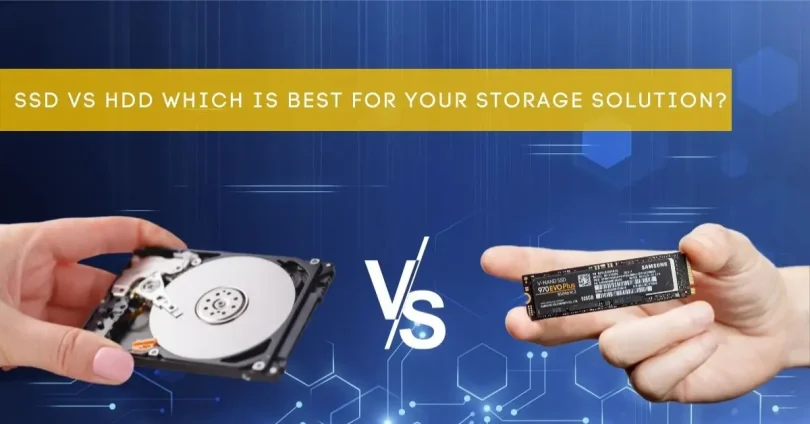
Two main types of storage dominate the market today: Solid State Drives (SSD) and Hard Disk Drives (HDD). SSDs leverage flash memory to offer faster data access, quicker boot times, and improved durability, while HDDs use spinning magnetic disks, providing larger storage capacities at a lower cost.
This comparison aims to highlight the key differences between SSDs and HDDs, helping you understand their strengths, weaknesses, and best use cases—so you can choose the right storage solution for your needs.
What is an HDD?
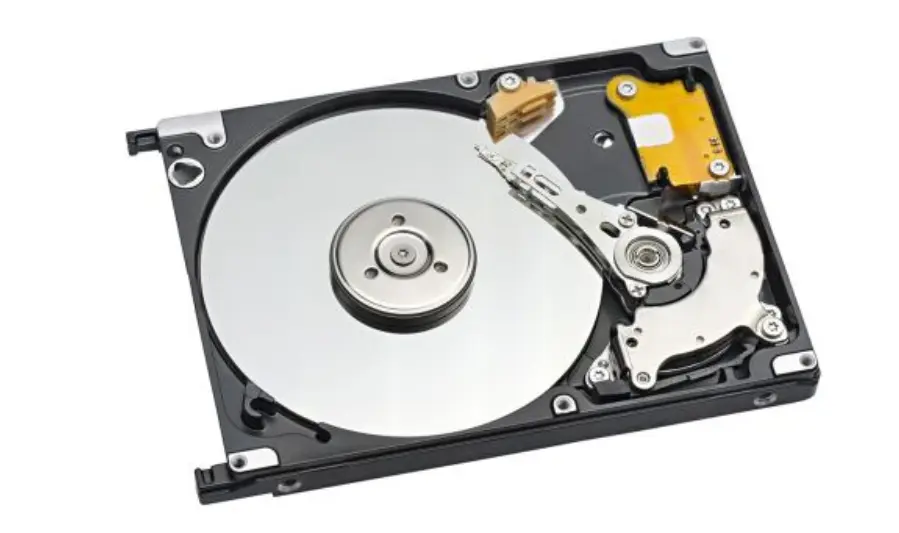
A Hard Disk Drive (HDD) is a traditional storage device that uses mechanical parts to store and retrieve digital data. It has been the standard for mass storage in computers for decades.
How HDDs Work
- Mechanical Components: HDDs consist of one or more spinning magnetic disks called platters. These platters rotate at speeds typically between 5,400 and 7,200 RPM (Revolutions Per Minute), though some high-performance models spin at 10,000 or even 15,000 RPM.
- Read/Write Heads: Data is read and written by tiny magnetic heads that float just nanometers above the platters, moving across the disk surface to access different parts of the data.
- Data Storage: Data is stored magnetically on the platters in sectors and tracks, allowing the drive to hold large amounts of data.
Typical Specifications and Speeds
- Capacity: Commonly ranges from 500GB up to 20TB or more, making HDDs ideal for bulk storage.
- Speed:
- Typical rotational speeds: 5,400 – 7,200 RPM for consumer drives.
- Data transfer rates: Usually between 80 MB/s and 160 MB/s depending on the drive.
- Interface: SATA III (6 Gbps) is the most common connection for modern HDDs, though older drives may use SATA II or even IDE.
Advantages of HDDs
- Cost-Effective: Generally offer the lowest cost per gigabyte, making them ideal for large-volume storage on a budget.
- High Capacity: Available in larger capacities than most consumer SSDs at a lower price point.
- Good for Archival Storage: Suitable for storing media libraries, backups, and files that don’t require ultra-fast access.
Limitations of HDDs
- Slower Performance: Mechanical parts limit speed, resulting in slower boot times, file transfers, and application loading compared to SSDs.
- Fragility: Moving parts make HDDs more susceptible to damage from shocks or drops.
- Noise and Heat: Can generate audible noise and heat due to spinning platters and moving heads.
- Power Consumption: Tend to use more power, which can affect battery life in laptops.
What is an SSD?
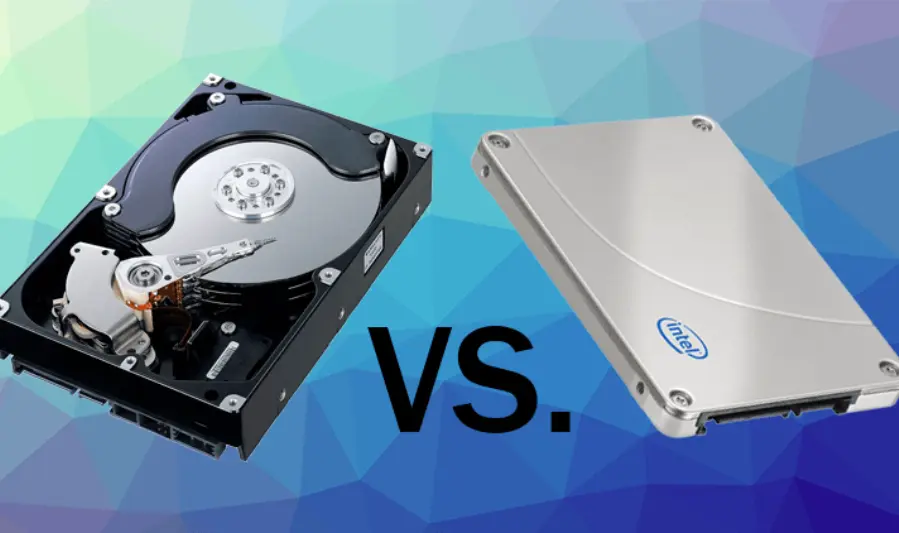
A Solid State Drive (SSD) is a modern storage device that uses flash memory to store data, offering much faster performance compared to traditional hard disk drives (HDDs). Unlike HDDs, SSDs have no moving parts, which makes them more durable and efficient.
How SSDs Work
- Flash Memory: SSDs use NAND-based flash memory chips to store data electronically. This allows for near-instant access to data since there’s no mechanical movement involved.
- No Moving Parts: Without spinning disks or moving read/write heads, SSDs access data much faster and are less prone to physical damage.
- Controller: A built-in controller manages data storage, error correction, and wear leveling to maximize performance and lifespan.
Types of SSDs
- SATA SSDs
- Connect via the SATA interface (same as HDDs).
- Maximum theoretical speed around 600 MB/s due to SATA limitations.
- Great upgrade option for older systems.
- NVMe SSDs
- Use the PCIe interface, offering much higher speeds than SATA (up to several GB/s).
- Designed for performance-intensive tasks like gaming, video editing, and large file transfers.
- M.2 SSDs
- A form factor that supports both SATA and NVMe protocols.
- Small, compact size ideal for laptops and compact PCs.
- NVMe M.2 drives provide blazing-fast speeds, while SATA M.2 drives are limited by SATA speeds.
Advantages of SSDs
- Speed: Significantly faster boot times, file transfers, and application loading compared to HDDs.
- Durability: No moving parts mean less chance of mechanical failure and better resistance to shocks and drops.
- Energy Efficiency: Lower power consumption helps extend battery life in portable devices.
- Silent Operation: Completely silent since there are no mechanical components.
- Smaller Size: Compact form factors make SSDs suitable for slim laptops and small builds.
you may also like to read these posts:
The Most Powerful Graphics Cards of 2025 Reviewed
Top Powerful Processors for Ultimate Gaming Performance 2025
Best Motherboards in 2025: A Complete Comparison Guide
SSD vs HDD Performance Comparison: What You Need to Know
Limitations of SSDs
- Cost: More expensive per gigabyte compared to HDDs, especially for large capacities.
- Lifespan: Flash memory cells wear out after a finite number of write cycles, though modern SSDs are designed to last many years under normal use.
- Capacity: While large SSDs exist, they’re generally pricier and less common than high-capacity HDDs.
Performance Comparison: SSD vs HDD
Read/Write Speed Differences
- Sequential Speeds (large continuous data transfers):
- HDD: Typically between 80–160 MB/s (depending on RPM and drive quality).
- SATA SSD: Around 500–600 MB/s (limited by SATA interface).
- NVMe SSD: Can exceed 3,000 MB/s and up to 7,000 MB/s on the fastest PCIe 4.0/5.0 drives.
- Random Speeds (small files accessed in random order, crucial for OS and app responsiveness):
- HDD: Slow due to mechanical movement, often below 1 MB/s for random reads/writes.
- SSD: Thousands of times faster random access speeds (tens of thousands of IOPS), dramatically improving system responsiveness.
Impact on Boot Times and Application/Game Loading
- Boot Times:
- HDDs can take 30 seconds or more to boot modern OSes.
- SSDs cut this down to 10–15 seconds or less, with NVMe SSDs often under 10 seconds.
- Application/Game Loading:
- SSDs drastically reduce load times in games and software, leading to smoother experiences.
- HDDs often cause noticeable delays, especially with large files or open-world games requiring frequent streaming of assets.
Real-World Performance Scenarios
- Everyday Use:
- SSDs make everyday tasks like opening files, browsing, and multitasking feel snappier and smoother.
- HDDs may feel sluggish, especially with multiple programs open.
- Content Creation:
- SSDs enable faster file transfers, quicker editing, and smoother handling of large media files.
- HDDs can bottleneck workflows when dealing with high-resolution videos or large datasets.
- Gaming:
- NVMe SSDs reduce in-game loading screens and texture pop-ins.
- HDDs may cause longer wait times and occasional stutters.
Durability and Reliability: HDD vs SSD
Mechanical Vulnerability of HDDs
- Moving Parts: HDDs rely on spinning platters and delicate read/write heads that hover just nanometers above the disk surface.
- Shock Sensitivity: Physical shocks or drops can cause the read/write heads to crash onto the platters, leading to data loss or drive failure.
- Wear Over Time: Mechanical components wear out due to constant spinning and movement, which can cause eventual failure after years of use.
Shock Resistance and Lifespan of SSDs
- No Moving Parts: SSDs use flash memory chips, making them much more resistant to physical shocks, drops, and vibrations.
- Longer Lifespan in Harsh Conditions: Ideal for laptops, portable devices, or environments where movement is common.
- Write Wear: SSD cells have limited write cycles, but modern SSDs use wear-leveling algorithms to distribute writes evenly, often lasting many years under typical use.
- Data Retention: SSDs can retain data without power for several years, but prolonged power-off periods may degrade data integrity slightly.
Failure Rates and Data Recovery Considerations
- Failure Rates:
- HDD failure often follows mechanical wear patterns and can sometimes be predicted by SMART monitoring.
- SSDs tend to fail more suddenly due to controller or flash memory issues but generally have lower failure rates overall.
- Data Recovery:
- Recovering data from a failed HDD can be possible (though costly) if the damage is mechanical and the platters are intact.
- SSD data recovery is more complex and sometimes impossible if the controller or flash memory chips fail.
- Backup Importance: Regardless of drive type, maintaining regular backups is crucial for preventing data loss.
Capacity and Cost Analysis: SSD vs HDD
Cost per Gigabyte
- HDDs
- Generally offer the lowest cost per gigabyte.
- Typical price range (2025): Around $0.02 to $0.04 per GB depending on capacity and brand.
- Great for users needing large amounts of storage without spending much.
- SSDs
- More expensive, especially NVMe and higher-capacity models.
- Typical price range (2025): Around $0.08 to $0.15 per GB for mainstream SATA and NVMe drives.
- Prices continue to drop but still cost more than HDDs per GB.
Available Storage Sizes
- HDDs
- Commonly available from 500GB up to 20TB+.
- Best choice for mass storage, backups, and media libraries.
- SSDs
- Common sizes range from 250GB to 4TB for consumer models; enterprise drives can be larger.
- Larger SSDs (8TB+) exist but are expensive and less common.
Value Proposition
- Budget Users
- HDDs provide the best bang for your buck when storage capacity is the priority.
- Ideal for archiving, bulk media storage, or systems where speed isn’t critical.
- Premium Users
- SSDs deliver superior performance, durability, and power efficiency.
- Perfect for gamers, content creators, and professionals needing fast access to files and applications.
- Investing in SSDs (especially NVMe) can significantly boost productivity and user experience.
Power Consumption and Noise: SSD vs HDD
Energy Usage Differences
- HDDs
- Consume more power due to spinning platters and moving read/write heads.
- Typical power usage ranges from 6 to 9 watts during active use and around 3 to 5 watts when idle.
- Can impact battery life noticeably in laptops and increase electricity costs in desktops running 24/7.
- SSDs
- Much more energy-efficient since they have no moving parts.
- Typical power usage ranges from 2 to 4 watts during active use and less than 1 watt when idle.
- Helps extend battery life significantly in portable devices.
Noise Generation
- HDDs
- Mechanical parts generate audible noise — spinning disks and moving heads produce humming, clicking, or buzzing sounds.
- Noise levels vary by model but are noticeable in quiet environments.
- SSDs
- Completely silent operation due to lack of mechanical components.
- Ideal for noise-sensitive setups like home offices, studios, and quiet rooms.
Implications for Laptops and Desktops
- Laptops
- SSDs are preferred for longer battery life, durability, and silent operation.
- HDDs may reduce battery life and can be susceptible to damage from drops.
- Desktops
- Noise from HDDs can be mitigated with better case design and quieter models, but SSDs provide a completely silent experience.
- Power savings are less critical but can add up in systems running continuously.
Use Cases and Recommendations
Best Scenarios for Using SSDs
- Operating System Drive: Installing your OS on an SSD dramatically reduces boot times and improves overall system responsiveness.
- Gaming: Faster load times and smoother texture streaming improve gaming experiences, especially with NVMe SSDs.
- Content Creation: Video editing, 3D rendering, and large file manipulation benefit from SSD speed for quicker access and transfers.
- Everyday Computing: For general productivity, web browsing, and multitasking, SSDs make systems feel snappier and more responsive.
- Laptops and Portable Devices: SSDs provide durability, low power consumption, and silent operation, essential for mobility.
Ideal Uses for HDDs
- Mass Storage: Storing large volumes of media files, backups, and archives where speed is less critical.
- Budget Builds: When storage capacity needs outweigh budget constraints, HDDs provide more space for less money.
- Secondary Storage: Adding extra capacity to a system primarily running on an SSD.
- Surveillance Systems: Often use HDDs to continuously record large amounts of footage affordably.
Hybrid Setups Combining SSD and HDD
- Best of Both Worlds: Use a smaller SSD for your OS and frequently accessed applications, paired with a large HDD for bulk storage.
- Performance + Capacity: This setup balances speed and cost, allowing for quick boot times and ample space without breaking the bank.
- Data Organization: Keep active projects and system files on the SSD, while storing media, backups, and less frequently used data on the HDD.
Future Trends in Storage Technology
- Emerging technologies (e.g., QLC SSDs, new HDD tech)
- Expected price and performance trends
- Impact on consumer and professional markets
Faqs:
Can I replace my HDD with an SSD without reinstalling the operating system?
Yes, you can clone your HDD to an SSD using specialized software, allowing you to replace the drive without reinstalling the OS.
Are SSDs worth the extra cost compared to HDDs?
For most users, yes. SSDs offer significantly faster speeds, better reliability, and lower power consumption, which improves overall system performance and lifespan.
How long do SSDs last compared to HDDs?
SSDs generally last several years under normal use, with lifespan measured in terabytes written (TBW). HDDs can last longer mechanically but are more prone to physical damage.
What is NVMe, and how does it improve SSD performance?
NVMe (Non-Volatile Memory Express) is a protocol designed for SSDs that allows faster data transfer speeds compared to SATA SSDs, resulting in quicker load times and file transfers.
Should I use an SSD or HDD for gaming?
An SSD is recommended for gaming because it greatly reduces load times and improves game performance, though HDDs can still be used for storing large game libraries.
Conclusion:
When comparing SSD vs HDD performance, SSDs clearly offer superior speed, durability, and energy efficiency, making them the preferred choice for most users in 2025. However, HDDs remain valuable for budget-conscious users needing large storage capacity at a lower price. Ultimately, choosing the right storage depends on your specific needs—whether you prioritize fast performance or cost-effective, high-capacity storage. Many users find that combining an SSD for their operating system and applications with an HDD for bulk storage provides the best of both worlds.